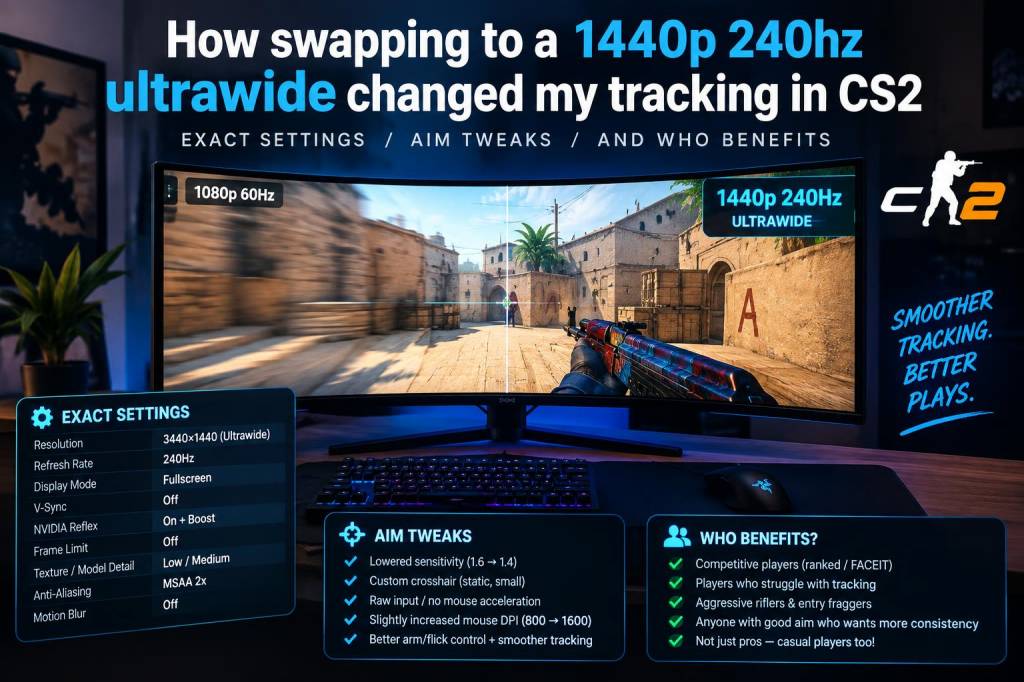
I swapped my 16:9 1080p 240Hz setup for a 34" 3440x1440 240Hz ultrawide and it broke — then rebuilt — my tracking in CS2. The change wasn't just “nicer visuals”; it forced me to rethink sensitivity, muscle memory, and how I practice aim. Below I go through the exact settings I ended up on, the aim tweaks I made, why they matter, performance trade-offs, and which players should actually consider this move.
Why I switched and the immediate feeling
I was chasing more screen real estate and immersion — but what hit me first was peripheral information. Enemies show up earlier on the sides, smokes and flashes feel different, and my baseline crosshair placement needed tiny shifts. Tracking felt "sluggish" at first not because of latency but because the same physical mouse movement now corresponds to a different on-screen angular motion. That mismatch is what made me miss shots.
Key hardware & baseline software choices
My test rig (so you can gauge performance needs):
- GPU: NVIDIA RTX 4080 — sustained 240+ FPS at high settings in most maps
- CPU: Ryzen 7 7800X3D — low frame variance
- Monitor: 34" 3440x1440 240Hz ultrawide (LG/Alienware/Samsung class panel)
- Mouse & settings: Logitech G Pro X Superlight, 800 DPI, 1:1 mouse accel off
Short takeaway: to actually use 240Hz at 3440x1440 you need a powerful GPU from the 40-series or top 30-series in many cases, or you need to be willing to drop some non-essential visual settings.
Exact in-game & Windows settings I landed on
I iterated over a week. These are the settings I now use and recommend testing from as a starting point.
| Area | Setting | Value / Note |
|---|---|---|
| Windows | Mouse DPI | 800 (my mouse), set profile for CS2 |
| Windows | Polling rate | 1000 Hz |
| Windows | Enhance pointer precision | Off |
| CS2 - Controls | Raw input | On (m_rawinput 1) |
| CS2 - Controls | Mouse accel | Off (m_customaccel 0) |
| CS2 - Video | Resolution | 3440x1440 (native ultrawide) |
| CS2 - Video | Refresh | 240 Hz (match monitor) |
| CS2 - Video | Render Scaling | 100% (or 95% if performance needed) |
| CS2 - Advanced | NVIDIA Reflex | On + Boost |
| CS2 - Network/Advanced | fps_max | 240 (or 0 to uncapped if thermostats allow) |
Sensitivity conversion & how I adjusted muscle memory
The physical relationship between your mouse movement and the angle turned in-game depends on FOV. Ultrawide increases horizontal FOV, so the same mouse movement rotates your view across more screen pixels. That can feel like “slower” tracking. I approached this like tuning cross-sens rather than raw DPI:
- Start from your current DPI + sensitivity combo. I was at 800 DPI and 2.0 sens (CSGO-era).
- Calculate your baseline cm/360 (if you know it). If not, adjust in small increments: reduce in-game sens by ~5-8% initially for ultrawide and see how it feels.
- I ended at 800 DPI + 1.86 sens. That moved my 360cm roughly into the same physical range as before while matching perceived on-screen motion.
Specific formulas can be useful: cm/360 = 2.54 * 360 / (DPI * sens * 0.022). CS2 uses the same sensitivity scale as CS:GO historically, so this is a usable shortcut for conversions.
Aim tweaks: crosshair, FOV, and placement
These were the changes that mattered more than raw sensitivity.
- Crosshair size and gap: I tightened my gap by 1 unit and slightly reduced size. Ultrawide can make targets appear smaller in your central vision; a slightly smaller crosshair improved precision.
- Horizontal pre-aim: Practice shifting crosshair more horizontally in common angles — long corridors and wide entry paths. The extra lateral information meant I could pre-aim earlier, but only if my crosshair placement accounted for it.
- ADS and scoped zoom handling: If you use scoped weapons or AWP, test scoped sensitivity. I kept scope sensitivity consistent but practiced flicking to edges since targets can appear earlier at the fringes.
- Familiarize with corner peek width: Ultrawide shows more of the wall/cover per peek; adjust your micro-peeks and shoulder exposure accordingly.
Training drills I used to rebuild tracking
Instead of mindless deathmatch, I focused on targeted drills for the widescreen experience:
- Tracking bots moving horizontally across a 270-degree sweep — exaggerate the arc to simulate ultrawide lateral motion.
- Aim Lab / Kovaak scenarios set to 3440x1440 if possible (or scale the window). Do high-speed tracking drills at 240Hz profile to match refresh behavior.
- Server practice with utility-heavy lines (smokes, long corridors) to rebuild crosshair placement for wider sightlines.
- Warm-ups focusing on small, continuous corrections (micro adjustments) rather than large flicks.
Performance & visual trade-offs
Running 3440x1440 at 240Hz is demanding. My practical notes:
- If you drop to medium textures and turn off heavy effects like motion blur and bloom, you can keep higher FPS without losing needed visual clarity.
- Enable NVIDIA Reflex and lower input latency. Use “performance” GPU modes for esports titles.
- Monitor response time and refresh rate tuning: low persistence and fastest overdrive help maintain crisp motion at 240Hz.
Who should and shouldn't switch
- Should switch: Players who value additional situational awareness, those who use mixed arm+wrist aim and want more peripheral info, streamers who like cinematic presentation while keeping high refresh, and anyone with the GPU horsepower to sustain 240Hz at 3440x1440.
- Might not: Pure flick players who rely on tiny, repeatable 16:9 muscle memory may find the adjustment overhead frustrating. Budget GPU owners who can’t reach consistent high FPS should wait or consider 1440p 144Hz options first.
Final practical checklist to try this yourself
- Backup your original sens and configs. You’ll need to revert if the ultrawide doesn’t click for you.
- Start with a 5–8% sens reduction, practice for a week, then tune in 1–2% steps.
- Keep raw input on, acceleration off, and Windows pointer precision disabled.
- Run targeted tracking drills daily for a week — focus on horizontal sweeps and micro-corrections.
- If you get frame drops, lower post-processing and shadows before lowering render scale.
Switching to a 1440p 240Hz ultrawide altered my tracking because it altered what my hands expect to produce on-screen. The fix wasn’t a single setting change; it was a combo of slightly lower sens, tighter crosshair, focused practice, and ensuring the hardware kept up. After the adjustment period I felt more aware, my tracking improved, and I gained a smoother, more confident aim across long corridors and wide angles — exactly the kind of upside I chase on Gameriously.