I’ve spent more hours than I care to admit debugging streams where my voice and the game were just a beat—or three—out of sync. It’s maddening for viewers and crippling for clarity when I’m calling strats or reacting to in-game cues. Over time I learned to spot the subtle signs of hidden audio latency and to methodically fix each link in the chain. Below I walk you through the tools, tests, and settings I use to get mic and game audio tightly locked in OBS (or your encoder of choice) so your streams sound and feel live.
Why this happens (and why you might not notice at first)
Audio latency in a streaming setup isn’t always one single thing. It’s the sum of everything: your mic’s conversion latency, USB or interface buffering, audio routing inside your PC, game engine audio buffering, capture card or HDMI delay, and finally the encoder’s buffering. Small delays stack up and become obvious when your mouth movements or in-game footsteps don’t line up with the sound.
Some latency is introduced deliberately (buffering helps stability), and you can’t remove all of it. The goal is to identify the hidden culprits, minimize unnecessary buffering, and align sources inside your streaming software so human perception sees them as simultaneous.
How I spot latency problems fast
- Visual sync test: I open a simple stopwatch video (or record myself speaking while clapping) and play it back through the capture path. If the clap sound hits noticeably after my hands, that’s an easy sign.
- Live monitoring: I monitor my mic directly in hardware (zero-latency monitor) and compare to the audio coming back through OBS on stream delay. If my local monitoring and stream audio are offset, I know the issue is between the encoder and my local path.
- Viewer feedback: Don’t discount chat. Viewers will call out “your voice is delayed” and that’s often the first real sign.
- Latency meter tools: I use simple DAW record tests (Reaper, Audacity) to stamp incoming audio timestamps versus a reference signal. This quantifies the ms gap.
Quick checklist to isolate the problem
- Is the mic USB or XLR through an audio interface?
- Are you using virtual audio routing (Voicemeeter, Virtual Audio Cable, JACK)?
- Is the game on the same PC or on a capture card from a console/second PC?
- What is your OBS audio monitoring set to (monitor off, monitor only, monitor and output)?
- Are any plugins (VSTs) introducing lookahead or added latency?
Step-by-step fixes I rely on
Below are the concrete steps I take, ordered from easiest/most likely to fix to more technical changes. Do them in order and test after each change to see if the sync improves.
- Use direct hardware monitoring for your mic: If your interface supports zero-latency monitoring (most Focusrite, RME, Presonus interfaces do), enable it. That gets your personal monitoring in sync with your voice and removes one variable.
- Match sample rates: Make sure your audio interface, Windows sound settings, and OBS are all set to the same sample rate (44.1 kHz or 48 kHz). Mismatched sample rates force on-the-fly resampling that can add jitter and delay.
- Lower buffer sizes during streams: In your audio interface control panel, reduce the buffer size (e.g., 128 or 256 samples). Lower buffers reduce latency but increase CPU load. Find the lowest stable buffer you can run without xruns or clicks.
- Avoid redundant virtual routing: Virtual mixers like Voicemeeter are powerful but can add 20–200 ms if not configured carefully. If you use them, set them to the lowest buffers, or bypass them temporarily to test.
- Disable optional VSTs or lookahead compressors: Some VST plugins intentionally add latency (lookahead limiters, complex de-essers). Bypass these during testing to see if they’re the source.
- Use the same audio driver model: Prefer ASIO or WASAPI exclusive for lower latency. Avoid the generic Windows driver stacks for critical mic routing.
- Sync game audio capture: If you capture a console/game via capture card, remember HDMI latency and the capture card’s buffering. Many Elgato cards have “Low-Latency” mode; enable it or compensate inside OBS by offsetting the audio track.
- Set audio delay in OBS: OBS allows you to offset each source in milliseconds. Once you know the delta (use visual clap test), apply the appropriate delay to the mic or game audio source until they align visually and aurally.
- Watch the order of processing: If you route mic through a DAW then back to OBS, that round trip can add plenty of ms. If possible, use your interface’s direct monitoring and apply light processing directly in the interface (if available).
Measurements and math — how to estimate the delay
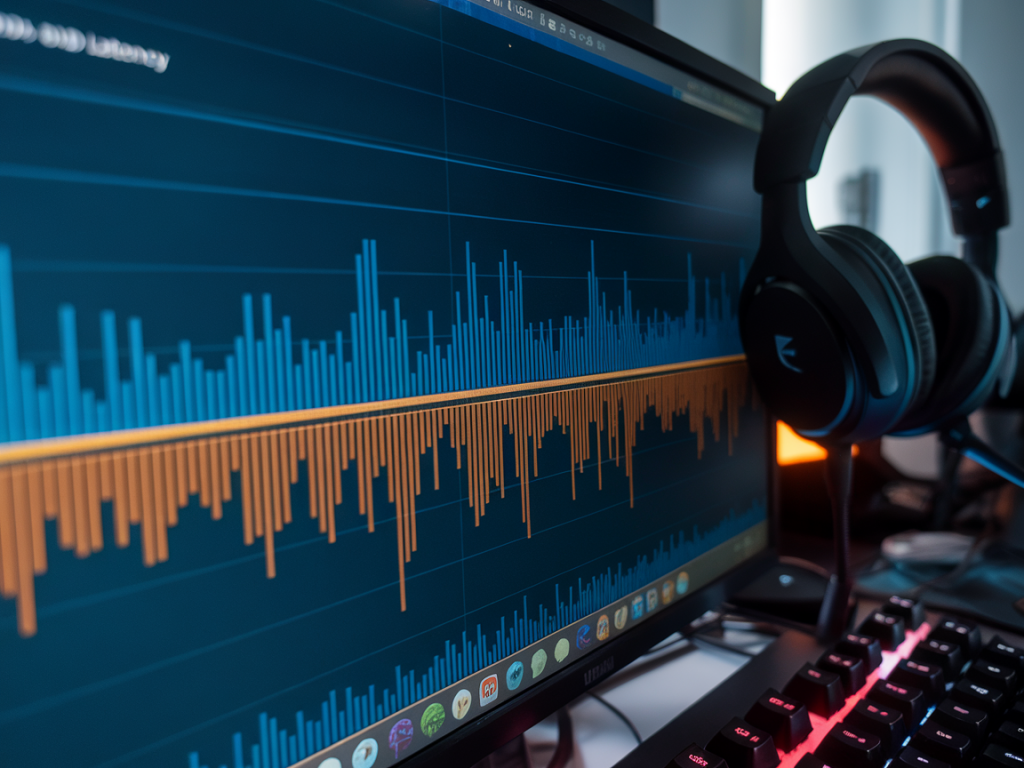
I usually run a simple clap test: start a screen recording of me clapping (video + system audio). Then I import the recording into a DAW and measure the time difference between the visual clap frame and the audio spike. That gives a precise ms value I can use in OBS audio offset fields.
| Symptom | Likely causes | First fix to try |
|---|---|---|
| Mic lags game | Buffering in DAW/virtual cable, OBS monitoring setup, high interface buffer | Lower buffer, bypass virtual cables, set OBS audio offset |
| Game lags mic | Capture card buffering, game processing, capture software delay | Enable low-latency on capture card, offset game audio in OBS |
| Intermittent pops + latency | CPU overload causing xruns, USB hub issues | Move interface to direct USB port, close CPU-heavy apps |
Practical OBS settings and tips I use
- Per-source audio delay: Right-click an audio source in OBS -> Properties -> use "Sync Offset (milliseconds)". Enter the ms you measured. Positive values delay that source.
- Audio monitoring: Set your mic monitoring to "Monitor and Output" only if you need to hear processed audio on stream; otherwise use hardware monitoring to avoid double routing.
- Track routing: Put game audio and mic on separate tracks so you can fine-tune offsets independently.
- Buffering in OBS settings: Leave encoder buffering at default unless you’re pushing ultra-low-latency streams; changing it can affect stability more than sync.
Hardware gotchas I watch for
USB hubs, cheap capture devices, and wireless mics can all introduce non-deterministic latency. I always connect my audio interface to a rear motherboard USB port (not a slim front-panel header or unpowered hub). If you’re using a wireless mic or Bluetooth, expect 50–200 ms and plan to replace with wired for tight sync.
Also, some “gaming” headsets do DSP on the headset itself (virtual surround, chat mixing) which can add delay. For critical streams, I use a dedicated mic (Shure SM7B with a Cloudlifter into an audio interface) and monitor through the interface, and I route headset chat separately if needed.
When software mixing is unavoidable
If you must use software routing (e.g., Voicemeeter + Discord + OBS), treat it like a multi-stage pipeline. Set all app buffers to the lowest stable values, use WASAPI exclusive where possible, and measure the cumulative delay. Then apply a single OBS offset to one source instead of juggling multiple small offsets.
If things still don’t line up
- Re-run the clap-to-audio measurement and verify your math.
- Temporarily simplify: use a direct mic input to OBS and capture game sound only via system audio. Reintroduce complexity step-by-step.
- Check for driver updates for your interface or capture card—sometimes a firmware bug creates huge latency.
- Ask your community: toss a short test clip to chat and ask when they hear the voice vs. the action. Real human feedback is invaluable.
Fixing hidden audio latency is a combination of detective work and judicious tuning. You don’t always need to chase the lowest theoretical latency; you need perceived sync. With consistent testing (clap tests, DAW measurements) and careful routing, you can get mic and game audio locked in tight enough that viewers forget to mention it—which, trust me, is the biggest win.