I’ve lost count of how many tournament matches I’ve thrown because of a sudden spike in packet loss. After enough painful lagouts, I started treating my home network like a competitive rig: tuning it for consistency, not just raw throughput. In this guide I’ll walk you through practical, hands-on steps to tune your home router’s QoS, configure port forwarding properly, and enable TCP BBR where it matters to reduce packet loss and stabilize latency during online tournaments.
Why packet loss happens and what we can realistically fix
First, a quick reality check. Packet loss can come from your ISP, bad cabling, overloaded Wi‑Fi, or your opponent’s network. You can’t control everything, but you can control most of the local stuff that ruins tournament play:
My goal here is to show you how to reduce avoidable packet loss by prioritizing game traffic, keeping NAT/port handling tight, and using modern congestion control like BBR when possible.
Start with diagnostics — baseline your connection
Before changing things, gather baseline metrics so you know whether your tweaks help. I use these tools:
Example commands:
Watch for packet loss on the first hop — if you see loss between your PC and your router, it’s a local issue (bad cable, Wi‑Fi). If loss starts later, it may be your ISP.
Wired is the baseline — prioritize ethernet for tournament PCs
If you want the best stability, plug your tournament machine into the router or a managed switch. Wi‑Fi is convenient but introduces more variables (signal, interference, driver behavior). When wireless is unavoidable, use 5 GHz, close channels, and consider Wi‑Fi 6 gear with low-latency features (e.g., ASUS, Netgear Nighthawk, Ubiquiti/UniFi).
QoS: what to set and how to think about it
Quality of Service (QoS) is about prioritizing traffic so that small, latency-sensitive packets (game packets, voice) don’t get delayed behind big uploads (cloud backups, game updates). Here’s how I configure QoS for tournaments.
Example with OpenWrt SQM (CAKE) + fq_codel:
Port forwarding, UPnP, and NAT — keep it simple and stable
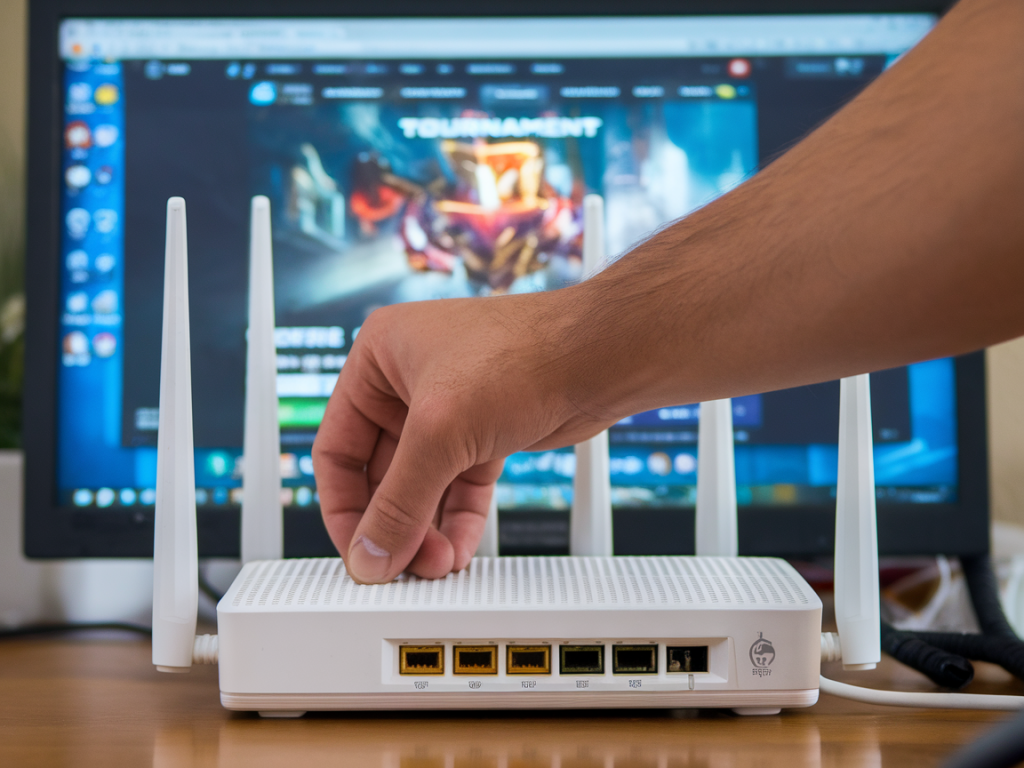
Many games need specific ports open for best connectivity, and improper NAT can cause retransmits or match join failures. Here’s how I handle it:
Tip: Use online port checkers or try a practice match and watch logs on the router to ensure rules are used.
Enable TCP BBR where it helps
BBR (Bottleneck Bandwidth and RTT) is a modern TCP congestion control algorithm developed by Google. It can reduce latency and retransmits for TCP flows compared to classic Reno or CUBIC, especially on higher-latency or variable links. Important caveat: most real-time game traffic is UDP, not TCP, so BBR helps services that rely on TCP (auth, updates, some match networking), and it’s hugely useful for things like game server hosting or remote gaming.
Check availability with:
Note: Consumer routers running stock firmware generally won’t expose BBR. Consider using a small Linux-based router (like a Raspberry Pi 4 as a gateway or a dedicated x86 box) or a supported OpenWrt build. If you can’t change the router, you can enable BBR on a game server you control (if you host scrims) or on a small home proxy to shape TCP flows.
Practical config examples
| Scenario | Action |
|---|---|
| High bufferbloat on home cable | Install OpenWrt/ASUSWRT‑Merlin, enable SQM CAKE, set uplink to 95% measured speed |
| Peer-to-peer game with connection drops | Assign static IP, forward UDP and TCP ports listed by game, disable double NAT |
| Hosting scrim server | Enable BBR on Linux server, ensure uplink not saturated, prioritize server traffic in router |
Test after changes — measure packet loss and jitter
After each change, re-run the baseline tests. I like to run iperf3 between the gaming PC and a local router or cloud endpoint, and run ping/mtr during practice matches. Look for:
For bufferbloat testing, use dslreports or router firmware that reports bufferbloat metrics. You should see the worst-case latency during a saturated upload drop substantially when SQM is correctly configured.
Other tweaks that matter
If you want, tell me the make/model of your router, your ISP’s uplink speeds, and which game you’re focusing on — I can give step‑by‑step commands or a tailored QoS rule set to paste into your router (OpenWrt/AsusWRT/UniFi/MikroTik examples included).