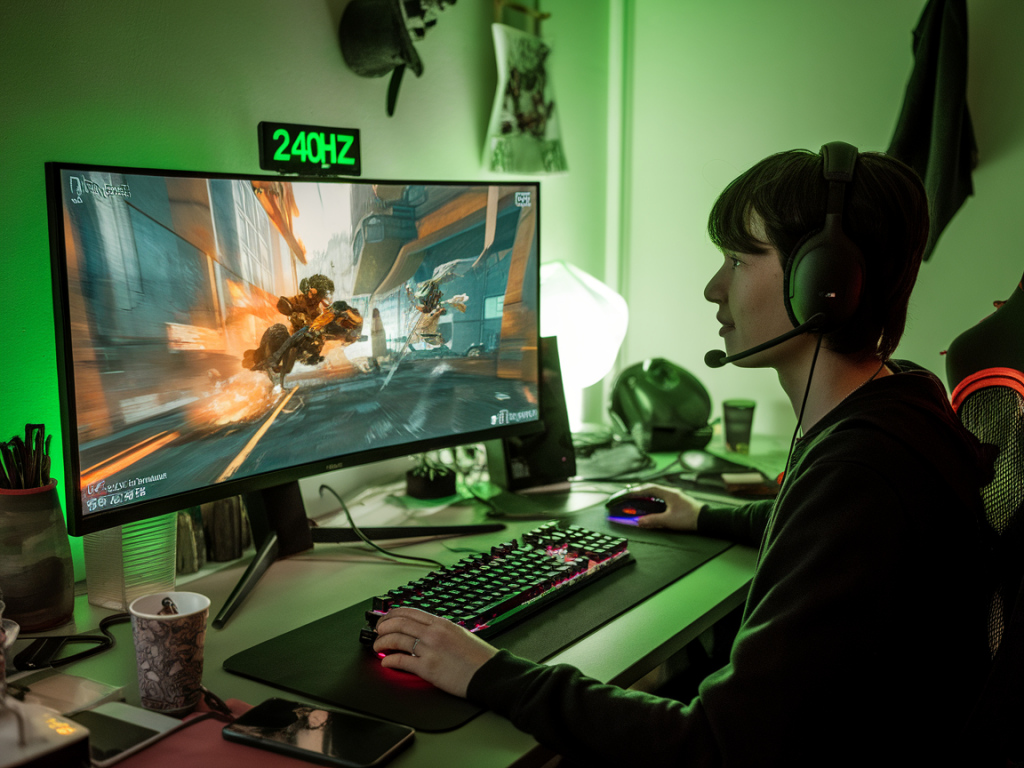
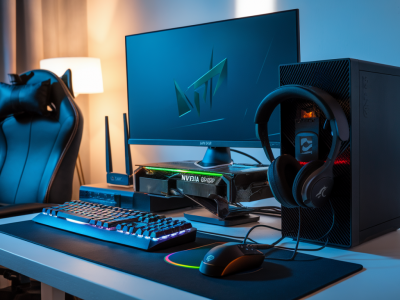
I get asked a lot by players who upgraded to a 240Hz panel: “Do I have to chase 240fps to get the advantage, or can I make 144fps feel better without the usual jitter and eye strain?” I’ve spent hundreds of hours testing high-refresh panels and tuning systems for pros and streamers, and the short answer is: yes — you can extract a real, practical 144Hz advantage from a 240Hz monitor. You just need to tune refresh, frame pacing, input path consistency, and display features so everything behaves predictably. Below I walk you through the why and how, with concrete settings and the trade-offs I use in my own rigs.
Why run 144fps on a 240Hz screen?
Running 144fps on a 240Hz monitor can be a sweet spot for many players. You reduce GPU load (and heat), enjoy more headroom for stable frame delivery, and hit a rate that's already a big improvement over 60/120Hz. But if you just cap frames to 144 and leave everything else at default, you'll often get tearing, microstutter, or inconsistent input—those very things that destroy the real-world feel. The goal is consistency: low latency, uniform frame times, no visual artifacts, and no eye strain from flicker or strobing.
Core principles I follow
Cap comfortably below the panel's max to avoid variable refresh oscillation (I target 140–144fps on a 240Hz panel).Use variable refresh (G-Sync/FreeSync) where possible and keep the frame cap slightly below peak refresh to prevent the monitor switching behaviour that causes jitter.Prioritize stable frame times over absolute peak fps. A rock-solid 140fps with 1–2ms jitter beats 200–240fps with spikes and tearing.Avoid aggressive motion strobe if you’re sensitive to flicker; treat strobing as a pro-level tweak, not a default.Step-by-step setup I use
Below is the practical setup that I deploy on Windows for competitive FPS. Adapt for your GPU brand and personal sensitivity.
Enable exclusive fullscreen in games. This reduces latency and avoids compositor hiccups from overlays.Turn on your monitor’s variable refresh mode (G-Sync or FreeSync). If you have a G-Sync compatible 240Hz monitor like the ASUS ROG Swift or Alienware AW2720HF, enable it in the driver.Cap your FPS to 140–144 using an in-game frame limiter or RTSS (RivaTuner Statistics Server). I prefer in-game caps when available because they tend to tie into the game’s own scheduler, but RTSS offers tighter control for older titles.Set the VRR range awareness cap: for most 240Hz monitors I cap at 144 to stay well within the VRR window and avoid the monitor switching internal refresh state (which causes micro-jitter). In Nvidia Control Panel, disable VSync globally and use the frame cap + G-Sync.Use low-latency modes sparingly: Nvidia’s “Low Latency – On/Ultra” or AMD’s Anti-Lag can help, but test them on a per-game basis because they can affect frame pacing. If you see inconsistent frametimes, switch them off and rely on a stable frame cap instead.Turn off triple buffering unless a specific game benefits. Triple buffering can reduce tearing but might introduce added latency and inconsistent present timing.Tune monitor overdrive to minimize ghosting without overshoot. Many panels need a “fast” or “normal” overdrive setting; avoid the highest “extreme” setting which often creates inverse ghosting.Disable aggressive motion-smoothing features in your GPU drivers or TV if you use one as a monitor—interpolation adds latency and artifacts.Test input path: set mouse polling to 1000Hz for most competitive play but try 500Hz if you notice jitter — some USB chipsets handle 1000Hz poorly. Use firmware-supported mice (Logitech HERO, Zowie, Razer with stable drivers).Keep your USB ports on a reliable internal controller. Avoid front-panel hubs or cheap extension dongles that can cause dropped packets and inconsistent polling.Disable Windows power saving for your GPU and USB. Use High Performance power plan and set USB selective suspend to “disabled”.Dealing with eye strain and flicker
Flicker can come from PWM backlight dimming or from strobed backlights (ULMB/ELMB). If you’re prone to headaches, follow these rules:
Avoid display backlight strobing unless you specifically test and tolerate it. Strobing reduces motion blur but induces perceivable flicker for some players.Use the monitor’s native flicker-free mode and a well-calibrated brightness. High brightness combined with PWM can aggravate strain — set brightness to a comfortable 100–200 nits for most ergonomic setups.Adjust color temperature warmer (e.g., 5000–6500K) and enable a blue light filter for long sessions; this reduces eye-fatigue while retaining enough contrast for gameplay.Take micro-breaks: simple 20-second focus shifts every 20 minutes (the 20-20-20 rule) helps eyes relax in intense sessions.Fixing input jitter and microstutter
Microstutter usually comes from inconsistent frame delivery or the monitor’s internal refresh switching. To reduce it:
Keep the frame cap just under a commonly supported divisor of the display’s native refresh. On 240Hz, 144 is 3/5 of 240 and tends to play nicely with the panel’s timings.Ensure the GPU isn’t thermal throttling. Undervolting the GPU or enabling a slightly higher fan curve keeps clocks stable under load and reduces frame time spikes.Close background tasks, game overlays (Discord overlay, GeForce Experience in-game overlay), and capture applications that inject frames or alter present timing.Use performance monitoring tools like RTSS frametime graphs or MSI Afterburner to spot spikes. FrameView or PresentMon can show if frames are being queued or doubled.Quick settings cheat-sheet
| Component | Recommended Setting |
| Monitor | Enable G-Sync/FreeSync, set overdrive to Normal/Fast, disable strobe unless tested |
| Frame cap | 140–144 fps via in-game limiter or RTSS |
| VSync | Off (use VRR + frame cap) |
| GPU drivers | Low latency mode test per-game; power profile = performance/auto |
| Mouse | 1000Hz polling (test 500Hz if jitter), reliable USB port |
| OS | High Performance power plan, disable USB selective suspend |
I test this configuration across a handful of monitors (ASUS, Acer, Dell/Alienware, Samsung Odyssey) and different GPUs. The consistent outcome: you get much of the perceptual advantage of higher refresh rates — smoother aiming, better tracking, quicker visual updates — without the micro-jitter and eye fatigue that makes many players abandon their 240Hz panels. It’s about making the whole system behave like a single instrument instead of a set of mismatched parts.
If you want, tell me your monitor model, GPU, and mouse, and I’ll give specific settings I’d try first. I’ll also walk you through how to capture frametime logs if you want to debug a jittery session — that’s my favorite part of the tune-up process.