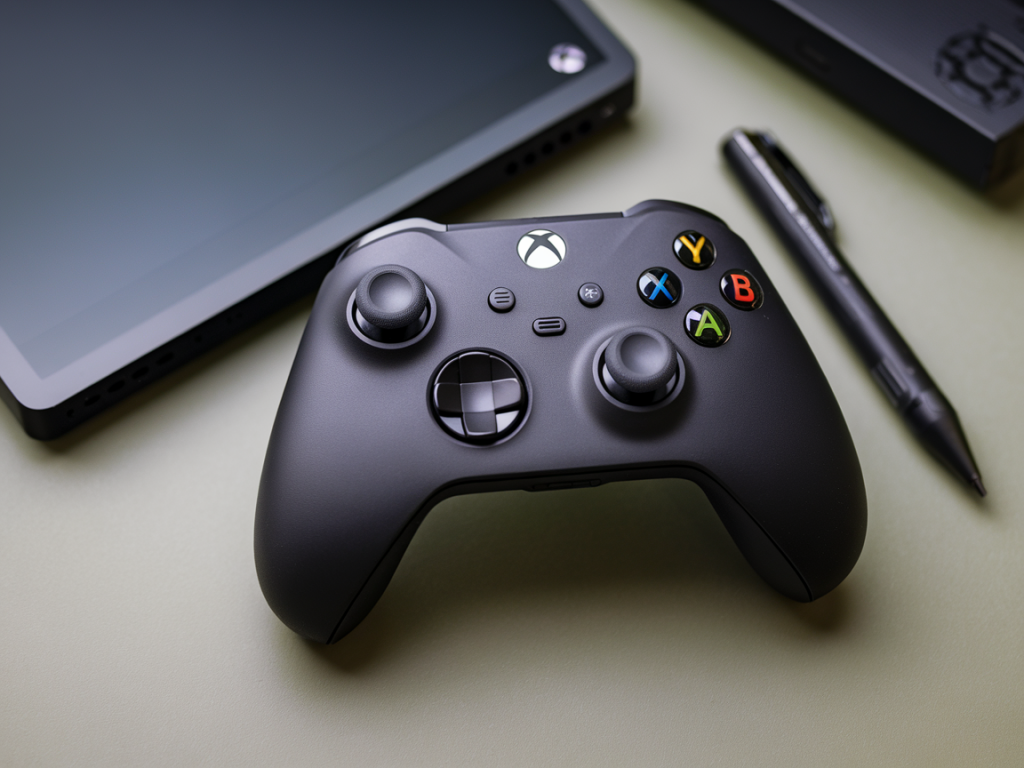
I used to blame my aim on bad days, laggy servers, or the other team's aim hacks. After grinding hundreds of hours in tactical shooters and tweaking every sensitivity under the sun, I realized a lot of “inconsistent aim” problems actually started at the controller — specifically the Xbox Elite Series 2 triggers and their deadzones. Once I learned how to tune trigger deadzones properly, my shot consistency improved more than any new mouse DPI setting ever did.
What is a trigger deadzone and why it matters
First things first: a deadzone is the portion of trigger travel that the controller ignores. Small deadzones prevent accidental shots when your finger rests lightly on the trigger, while large deadzones force you to press further before the input registers, adding variability to when a shot fires. On the Elite Series 2 you can tune how sensitive the triggers are, and combine that with the hair trigger locks to shorten travel and lower the mechanical actuation point.
In shooters, especially games where micro-taps or quick bursts matter (think Call of Duty, Valorant console, or Halo Arena modes), inconsistent trigger activation means inconsistent recoil patterns, burst timings, and ultimately worse accuracy. Dialing deadzones correctly gives you repeatable trigger activation — the foundation of consistent aiming and recoil control.
What the Xbox Accessories app actually lets you change
The Xbox Accessories app (console or Windows) is your tuning console. On the Elite Series 2 you can:
- Assign profiles and map trigger buttons.
- Set trigger sensitivity curves and deadzones (depending on firmware and app updates these options may be labeled slightly differently).
- Enable and configure hair trigger locks via the physical switch and confirm their behavior in the app.
Important: Microsoft has updated the app over time. If you don’t see trigger deadzone sliders, update both your console/PC and the Accessories app, then check for controller firmware updates.
Step-by-step: how I tune Elite Series 2 trigger deadzones for rock-solid aim
Here’s the workflow I use every time I set up a new profile or try to squeeze more consistency from my aim. It’s iterative and evidence-based — test, adjust, repeat.
- Update everything: controller firmware, Xbox Accessories app, and the game you play. Firmware updates sometimes fix button jitter and improve sensitivity options.
- Start with a neutral template: In the Accessories app, create a new profile and set triggers to default (no deadzone changes, hair locks off). This gives you a baseline.
- Test mechanical travel: Flip the hair trigger lock on the Elite 2 if you like shorter travel. Note: hair trigger locks change the physical actuation point — you’ll want less deadzone in software when they’re engaged.
- Open a controlled practice environment: I use the game’s shooting range or an aim trainer like Aim Lab / Kovaak on PC with the controller connected via USB. Aim for a repeating micro-burst task or single-tap target that highlights trigger timing.
- Adjust deadzone in small increments: Reduce the trigger deadzone until you start seeing accidental activations (shots when you barely touch the trigger). Then back off a notch. For many players, a deadzone between 3–7% (or the app equivalent) hits the sweet spot. Your mileage will vary; the Elite 2’s sensitivity granularity makes small changes matter.
- Test anti-deadzone (if available): Anti-deadzone basically makes the controller register the initial movement earlier to compensate for perceived sluggishness. I use it carefully: too much and you get jitter; too little and the trigger feels unresponsive.
- Fine-tune with in-game settings: Pair your trigger settings with lower input smoothing or aim assist tweaks (if the game allows). Some shooters apply controller-side smoothing that masks sensitivity changes, so disable smoothing during tuning.
- Record and repeat: Do short sessions (10–15 minutes) and track consistency: clutch hits, first-shot accuracy, and how often micro-taps register as full shots. Adjust deadzone if you notice delayed activations or phantom presses.
Recommended starting values and quick rules
There’s no universal number because finger pressure, hair locks, and game mechanics differ. Still, here are practical starting points I use and why.
| Scenario | Starting deadzone | Notes |
|---|---|---|
| Hair triggers off (longer travel) | 6–10% | Gives buffer to prevent accidental shots when finger rests on trigger. |
| Hair triggers on (short travel) | 2–6% | Shorter travel means lower software deadzone to keep taps consistent. |
| Slow, controlled sniping / single taps | 3–6% | Lower deadzone for quicker registration; must avoid accidental presses. |
| Rapid fire / spam shots | 6–10% | Higher buffer reduces misfires from small finger slips. |
These values are percent-like representations — the Accessories app may show sliders or numeric values calibrated differently. Use the app’s live readout when available.
How to detect and fix common problems
Here are issues I’ve run into and how I addressed them.
- Phantom activations: If shots register when you barely touch the trigger, raise deadzone 1–2 ticks or slightly loosen your hair trigger lock. Also check for moisture or sticky residue around the trigger — clean it.
- Delayed activation: If you have to push the trigger too far to fire, lower the deadzone or engage partial hair trigger. Test in short bursts to find where the shot becomes reliable.
- Jittery micro-taps: Reduce anti-deadzone or remove aggressive sensitivity curves. Some firmware/app combinations can introduce jitter when anti-deadzone is too high.
- Profile mismatch: Save multiple profiles in the Accessories app — one for hair triggers on, one for off; one for sniping, one for run-and-gun. Use the profile switch on the controller to switch instantly.
- Wireless lag concerns: For precise timing tests use wired USB. Wireless adds a few milliseconds and can mask whether a timing issue is software or network-related.
Tools and tests I use
I rely on a mix of free tools and in-game drills:
- Xbox Accessories app — for firmware and tuning.
- Aim Lab / Kovaak — for repeatable micro-tap and burst tests. Connect the Elite 2 via USB to PC to avoid wireless variability.
- In-game shooting range (e.g., Valorant practice range or CoD’s target range) — to validate the feel in real conditions.
- Smartphone camera at 240–960 FPS — to visually confirm trigger actuation vs. travel, if you want to be extremely meticulous.
Personal note: what changed for me
I switched to a shorter hair trigger profile and lowered deadzone to around the 4% mark for my competitive shooter profile. The immediate effect was fewer missed first shots and tighter recoil cones during burst fire. It didn’t make me suddenly “better” magically — aim fundamentals still matter — but it removed a source of randomness that had been stealing consistent wins from me. When your controller behaves predictably, every hour you train compounds more effectively.
If you want, I can share my exact Elite Series 2 profile values (hair trigger position, deadzone numbers, anti-deadzone) for a specific game you play — or walk you through a live tuning session step-by-step. Drop your game and playstyle and I’ll tailor the settings.