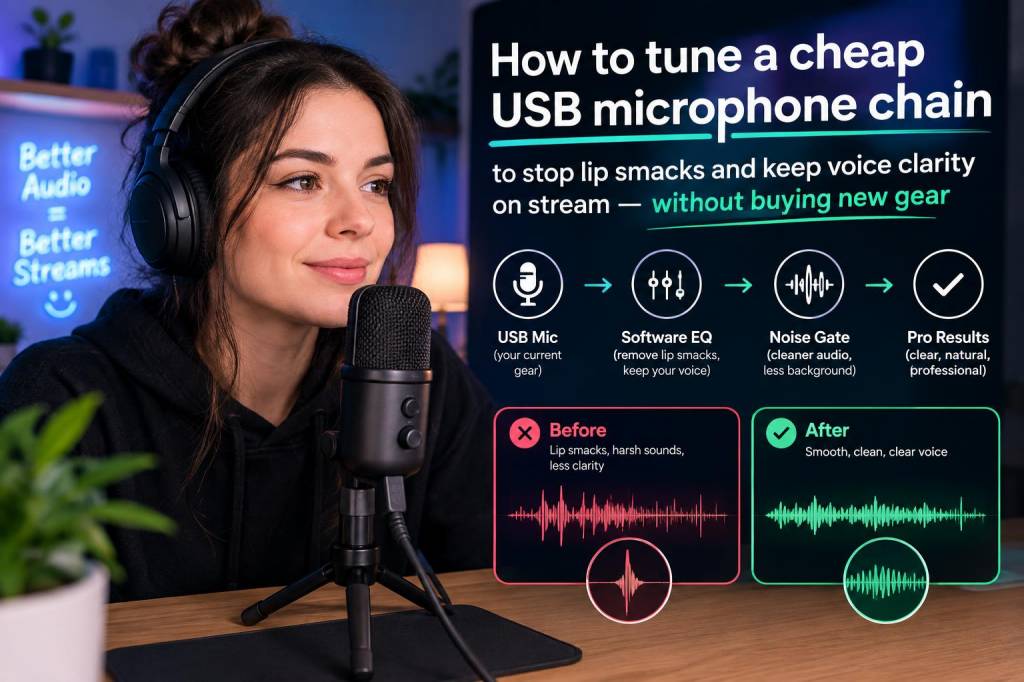
I hate lip smacks on stream. They’re tiny, disgusting, and somehow louder in the middle of a clutch. Over the years I’ve learned how to make a cheap USB microphone behave like a more expensive one just by tuning the chain — physical setup, OS levels, and a smart processing chain in OBS or your DAW. Below I’ll walk you through my full workflow: what I change physically, which settings I tweak, and how to assemble filters and free plugins to remove lip smacks while preserving clarity and presence. No new gear required.
Start with the mic and your placement — the hardware fixes that matter most
Before you touch a single plugin, try these physical adjustments. They fix a huge percentage of mouth noise without adding latency or artifacts.
Angle the capsule off-axis: point the mic slightly to the side and down from your mouth rather than straight at it. This reduces direct mouth noise and plosives while keeping voice intelligible.Back off the mic distance: move 5–15 cm (2–6 inches) away. Close-miking exaggerates smacks and mouth sounds; a bit of distance makes your voice naturally smoother. If you need level, compensate with gain (see below).Use a pop filter or foam windscreen: cheap pop filters and foam windscreens are effective. A thin pop filter in front of the mic tames plosives and catches some saliva-driven clicks.Mic isolation: mount the mic on a boom arm or stand to reduce desk coupling (taps and bumps can mask as clicks). Add a small foam pad or a folded sock behind the mic to dampen reflections if your room is bright.Hydration and tiny rituals: keep water nearby, avoid dry mouth (cough drops or sugar-free lozenges before streaming), and consciously pause or swallow before talking in intense moments.Set clean input levels in your OS
Bad levels are the root of many problems. Too hot, and mouth noises saturate; too low, and noise reduction will chew the signal, making you sound hollow.
Windows: open Sound Settings → Input Device → Device Properties → Levels. Aim for peaks around -10 dB to -6 dB in OBS/your recording software. Let average speech sit around -18 to -12 dBFS.macOS: use Audio MIDI Setup to check sample rate and levels. Monitor RMS rather than peak; again, target -18 to -12 dB on average.Disable built-in enhancements (Windows “Enhancements” can auto-equalize and add compression that you don’t want).OBS filter chain I use (order matters)
OBS makes it easy to replicate this. I apply filters in this order; each has a clear job.
Noise Suppression (RNNoise) — first to clean background hiss. RNNoise is excellent and preserves voice better than Speex in my experience. Strength: default RNNoise works well, but if you still hear room noise, try Speex -24 dB for aggressive suppression.Noise Gate — prevents your mic from opening on small silences (and tiny mouth clicks during silence). Settings I use: Close threshold around -50 to -45 dB, Open threshold -40 to -35 dB, Attack 10–20 ms, Hold 100–200 ms, Release 150–300 ms. Tweak while speaking loudly vs softly so gate doesn’t chop off tails.Gain — compensate for distance. +6 to +12 dB might be needed if you back off the mic.VST2 or VST3: ReaPlugs chain (ReaEQ → ReaDeEsser → ReaComp → ReaFIR) — I prefer ReaPlugs (free) loaded as a single VST chain. If you don’t use VSTs, OBS native filters (Compressor + EQ) can approximate this chain.Limiter — last step to prevent clipping. Hard limit at -1 dB.Detailed plugin settings and why they work
Here’s how I configure the ReaPlugs or similar tools. These are starting points — always listen and tweak to your voice.
High-pass filter (ReaEQ): set a gentle HPF at 60–100 Hz (safest) up to 120 Hz if your voice has no low rumble. This cleans mic handling and proximity boominess.Notch/mid cut: many cheap USB mics are muddy around 200–500 Hz. Try cutting a narrow band -2 to -4 dB at 250–400 Hz if your voice sounds boxy.Presence boost: a gentle shelf/peaking boost +1.5 to +3 dB around 3–6 kHz improves clarity. Be conservative — boosting too much emphasizes sibilance and clicks.De-esser: target 4–8 kHz for sibilance. Set threshold so it only engages on harsh “s” sounds. Ratio around 4–8 dB reduction is typical; adjust until sibilance and some mouth smacks are less piercing.Compressor (ReaComp): gentle settings to even out voice and keep low-level speech audible. Ratio 2.5:1–3.5:1, threshold around -18 to -12 dB, attack 5–10 ms, release 60–150 ms. Aim for 3–6 dB gain reduction on peaks.Limiter: output ceiling -1 dB to avoid accidental clipping on stream.Removing stubborn lip smacks — spectral subtraction trick
This is the secret weapon for mouth clicks you still hear. ReaFIR (part of ReaPlugs) can do spectral subtraction if you “teach” it a noise profile.
Record 3–10 seconds of intentional lip smacks and mouth noises, ideally while staying quiet otherwise.Open ReaFIR, set mode to Subtract, click Automatically build noise profile (enable during noise) and play your recording so ReaFIR learns the spectral shape of the smacks.After it learns, disable the automatic learning and let the filter subtract those spectral signatures in live audio. It’s not perfect, but it kills consistent clicks without killing your voice.Important: if your smacks are highly variable, over-subtraction introduces artifacts. Use a mild subtraction and rely on the de-esser + compressor to smooth the rest.
Alternative: transient/expander plugins
Transient-specific tools can clamp fast mouth clicks. Tools like ReaGate with fast attack/release or transient shapers can reduce click energy. Settings: ultrafast attack (0–1 ms), release 5–20 ms, set threshold to catch only the clicks. This is fiddly but can help with sharp, short noises.
Workflow for tuning and testing
Record test clips of: normal speech, shouting, soft whispering, and intentional lip smacks. Use the same input chain you stream with.Adjust one parameter at a time. Change EQ, then test. Tweak gate thresholds next. If you try everything at once, you won’t know what helped.Use a spectrogram (Audacity or Reaper) to inspect clicks — they often show broadband spikes. That helps you decide if ReaFIR subtraction can work.Listen on headphones and on your stream monitor (different speakers emphasize different artifacts).Quick presets and ranges
Use these as starting points for a typical dynamic USB mic like a Blue Yeti or Samson Q2U in cardioid mode:
| Input Peaks | -10 to -6 dBFS |
| Noise Gate | Open -40 dB, Close -50 dB, Attack 10 ms, Release 200 ms |
| HPF | 80–120 Hz |
| Presence | +1.5 to +3 dB @ 3–6 kHz |
| De-esser | 4–8 kHz, threshold tuned to only hit sibilance |
| Compressor | Ratio 3:1, Attack 5–10 ms, Release 60–150 ms |
| Limiter | Ceiling -1 dB |
Final notes from my experience
I’ve gotten my cheap USB mic within a hair of higher-end mics using nothing but positioning and processing. The biggest wins are physical: angle, distance, and a simple pop filter. The second biggest is a conservative processing chain — noise suppression first, then a gate, then EQ/de-essing and gentle compression. Use ReaFIR’s subtractive learning if you have persistent, repeatable smacks.
Don’t try to eliminate every tiny artifact — over-processing makes you sound unnatural. The goal is to remove the obnoxious smacks and keep the voice natural and present. Run the tests, save presets in OBS, and you’ll be surprised how well a cheap mic can perform on stream.