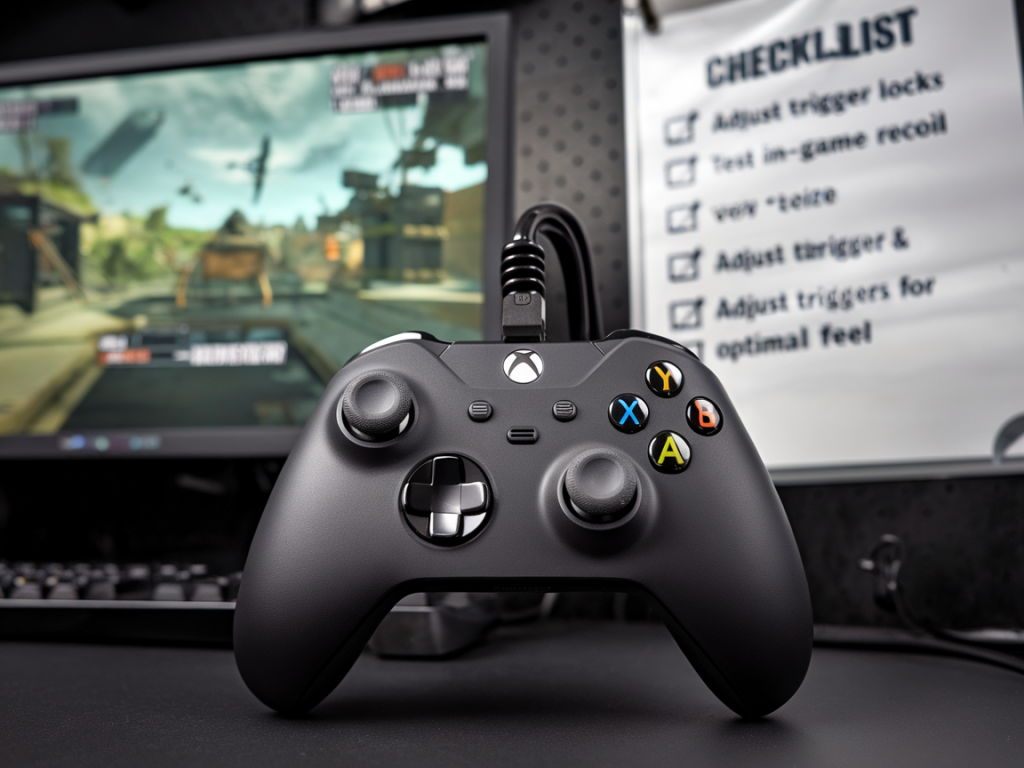
I spent weeks juggling settings, firmware updates, and sweaty practice matches to get my Xbox Elite Series 2 triggers dialing in for consistent recoil control in CS2 and Call of Duty. If you care about predictable shots — especially when bursting or spraying — the trigger deadzone and travel behavior matter more than most players realize. Below is the exact, practical step-by-step checklist I use whenever I want repeatable trigger input and consistent recoil. Follow it, and you’ll have predictable shots instead of random micro-fires or delayed presses.
Why trigger deadzones matter for recoil
First, a quick bit of context: deadzones and trigger travel both affect how the game senses your pull. Too large a deadzone or imprecise trigger curve = input lag, inconsistency between shots, and weird recoil patterns mid-burst. Too small or noisy a deadzone = accidental partial inputs (micro-fires) and jittery control. My goal is a sweet spot where each press registers cleanly and repeatably, letting muscle memory and aim technique control the recoil rather than inconsistent controller hardware behavior.
Tools and prep (what you’ll need)
Xbox Elite Series 2 controller (fully charged)Xbox Accessories app (console/Windows) or Steam Input (PC)Optional: trigger stops/travel reducers (Elite Series 2 has built-in trigger locks)In-game practice maps or aim trainer (CS2 deathmatch or offline recoil map, COD private match or firing range)Notepad or phone to log settings and impressionsChecklist: step-by-step tuning process
Update everything first. Firmware updates can change how the controller reports inputs. Open the Xbox Accessories app on Xbox or Windows and update the Elite Series 2 firmware before you touch settings.Create a fresh profile for each game. I keep a CS2 profile and a COD profile. That way I can fine-tune without overwriting the other game’s ideal values.Reset trigger to default and test baseline. Restore trigger settings to default in the Accessories app. Play a quick 10-minute session to note how the controller behaves out of the box — accidental micro-fires? delayed initial shots? This baseline helps you understand what to improve.Decide where to tune: controller app vs. Steam. If you play on Xbox, use Xbox Accessories. On PC, you can use Xbox Accessories or Steam Input. I prefer the Accessories app for hardware-level adjustments and Steam for per-game remapping if needed. Don’t run both active deadzone adjustments for the same axis — pick one to avoid conflict.Adjust trigger travel (use trigger stops). The Elite Series 2 has adjustable trigger locks. For games where you want faster register (like CS2 tapping), engage a shallower travel setting so the trigger hits the register point sooner. For sustained spray control (COD), slightly more travel can help prevent micro-fires. Test both and log results.Set trigger mapping and sensitivity curve. In the Xbox Accessories app, go to the trigger settings. Choose a linear curve for most shooters — it’s the most predictable. For COD where small partial pulls are common (aim assist interactions etc.), try a slightly weighted curve to require a firmer press before registering.Adjust trigger deadzone (or anti-deadzone) cautiously. If the app exposes a deadzone slider for triggers, start at a small value (e.g., 3–5%). If not explicitly available, use Steam Input’s “deadzone” for triggers and set to 3–6% as a baseline. The idea: small enough to reduce input lag, large enough to filter noise. Log the value.Enable anti-deadzone if available. Anti-deadzone can reduce the buffer caused by large deadzones and make initial movement feel more direct. Use it sparingly; too much can introduce jitter. I usually leave anti-deadzone at 1–2% for CS2 and off for COD unless I need quicker initial response.Test short-burst consistency. Jump into a firing range or recoil map and do 5-shot bursts on a wall target. Record whether the first shot and the following shots are consistent relative to your stick aim. If the pattern shifts unpredictably, you likely need to increase deadzone or smooth the trigger curve.Test full-auto spray. Hold the trigger and watch recoil compensation. If the gun randomly spikes or loses rhythm, try slightly increasing trigger travel or smoothing the curve. If the spray is delayed at the beginning, reduce deadzone or shorten travel.Tweak sensitivity in small increments. Change one variable at a time (deadzone, curve, travel) by a small amount, then retest. I make +/– 1–2% tweaks and play multiple 5–10 minute tests before deciding.Lock in with hardware micro-adjustments. If you still get accidental partial presses, add the physical trigger stops in a more aggressive position or consider using aftermarket trigger extenders (Control Freak-style) to change finger leverage and consistency.Save and name the profile clearly. “CS2-Recoil-Linear” or “COD-Spray-SoftCurve” — names that remind you what each profile is tuned for.Practical test script I use every tweak session
Consistency is about repeatable testing. Here’s the quick script I run after each small adjustment:
Warm-up: 2 minutes of tap-shots (single clicks) on a wall target to get feel.Short bursts: 20 x 3–5 shot bursts spaced across a wall; log whether horizontal or vertical deviation changes unpredictably.Full-auto: 5 x 10-second sprays at a fixed point, noting onset delay and mid-spray jumps.Movement: 10 sprays while strafing to ensure no input misreads when your hand shifts.Save notes: write down the profile name, deadzone %, travel stop position, and subjective feel.Recommended baseline settings (starter table)
| Game | Trigger travel | Deadzone (triggers) | Curve |
| CS2 (tapping & controlled burst) | Shallow (1–2 clicks) | 3–5% | Linear |
| COD (spray-heavy) | Medium (2–3 clicks) | 4–6% | Lightly weighted/smooth |
Common issues and fixes
Micro-fires at low press: Increase deadzone 1–2% or tighten trigger stop to require a firmer press.Delayed initial shot: Reduce deadzone, shorten trigger travel, or remove anti-deadzone if overcompensating.Inconsistent mid-spray spikes: Smooth the curve or add a touch more travel so slight finger movement doesn’t re-register within the spray.Conflicting settings between apps: Make sure only one input modifier (Accessories app or Steam) is active for triggers. Conflicts create unpredictable behavior.Final workflow tips I swear by
Make tiny changes and test extensively — big jumps hide where issues come from.Keep per-game profiles and label them clearly.Don’t assume default firmware settings are optimal; updates can reset curves and deadzones.Record video of your test sprays. I often watch my own footage slowed down to see exactly when the input registers.Practice with the tuned settings for at least an hour of real play before declaring “done” — muscle memory needs time to adapt.If you want, tell me your current deadzone and trigger stop settings plus the gun in CS2 or COD you’re tuning for, and I’ll suggest a targeted starting point based on what’s worked for me. I can also walk you through using Steam Input vs Xbox Accessories if you’re unsure which to use on PC.