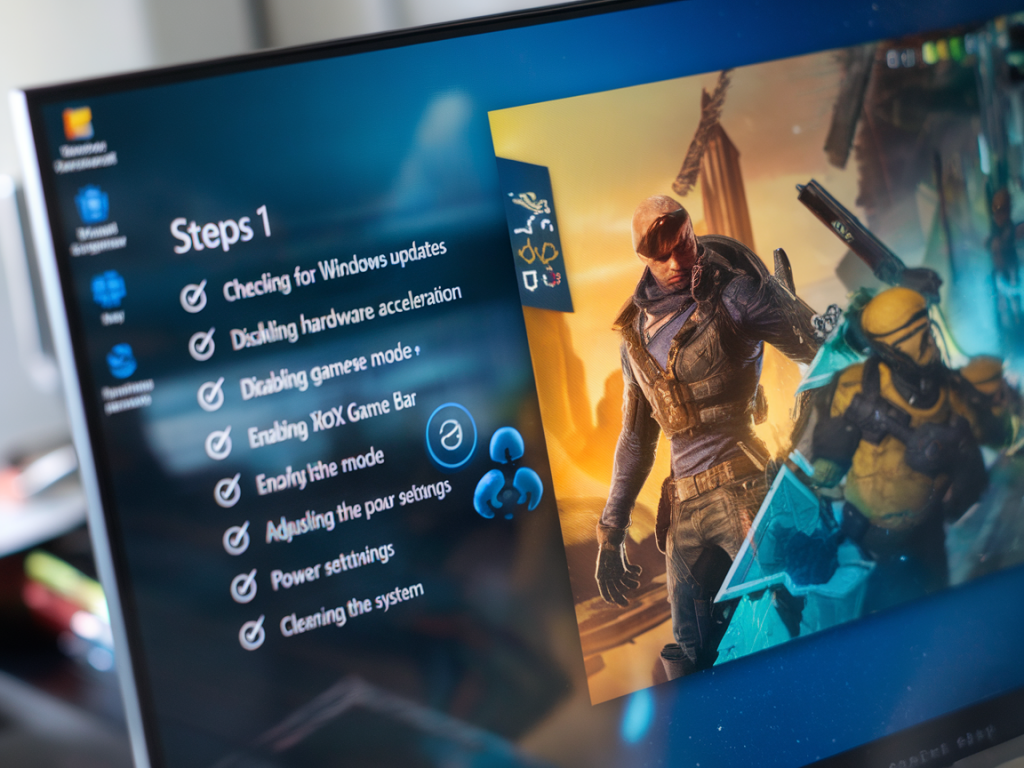
I hate random stutters. Nothing kills momentum like a one-second hitch during a clutch fight or a sudden pause while you’re exploring a story-heavy scene. Over the years I’ve chased and fixed dozens of these on Windows 11 rigs without reinstalling games, and I’ve boiled those steps into a practical, repeatable checklist you can run through. These aren’t theory — they’re the actions I use when I’m troubleshooting my own gaming PC or helping readers on Gameriously.
Quick mindset before you start
Random stutters have many causes: drivers, background tasks, thermal throttling, storage hiccups, VRAM/pagefile issues, or even Windows services misbehaving. The goal here is to methodically eliminate likely causes while keeping your games and installs intact. Work from easiest/fastest checks to the deeper diagnostics.
Immediate quick checks (do these first)
Reboot — sounds obvious, but it clears temp states and stuck services.Check temperatures — open HWMonitor, HWiNFO or MSI Afterburner and watch CPU/GPU temps while gaming. If either spikes near Tjmax or power limits, you’ll see stutters tied to thermal throttling.Free disk space — keep at least 10–20% free on your OS and game drives, especially on SSDs. Low space can cause huge stutters as the drive struggles with writes.Check Task Manager (Ctrl+Shift+Esc) — sort by CPU, Disk, and GPU usage. Look for spikes or background processes (Windows Update, OneDrive, Antimalware Service Executable, cloud syncs).Disable or tweak common background culprits
Background software is one of the most frequent causes of mid-session stutters. Disable or tweak the following while testing:
Cloud sync apps — OneDrive, Dropbox, Google Drive: set to “pause” or “offline.”Antivirus scans — temporarily create an exclusion for your game folders or pause scheduled scans.Overlay software — Discord, Steam, Xbox Game Bar, NVIDIA/AMD overlays. Turn them off and test.RGB and macro software — Razer Synapse, Corsair iCUE, Logitech G Hub: they can inject input or poll devices and cause hitches.Drivers and GPU settings
Graphics drivers are a top suspect. I prefer a clean approach before drastic measures.
Update GPU drivers — use the latest WHQL from NVIDIA or AMD. If you’re on an older driver that was stable, try rolling back instead.Clean-install drivers — use Display Driver Uninstaller (DDU) in Safe Mode and reinstall the latest driver. This removes corrupted driver remnants.Disable Hardware-accelerated GPU Scheduling — toggle off in Settings > System > Display > Graphics Settings (some systems benefit from on, others from off; test both).Turn off in-game RTX/advanced settings temporarily — ray tracing, DLSS/FSR upscale changes can sometimes destabilize frame pacing.Windows settings that matter
Power plan — set to High Performance or Ultimate Performance if available (Control Panel > Power Options).Game Mode and Xbox Game Bar — Game Mode generally helps, but I test both enabled and disabled. Xbox Game Bar often causes stutters; disable it in Settings > Gaming.Graphics Performance Preference — for each game in Settings > System > Display > Graphics, set “High performance” to ensure it uses your dGPU.Background apps — in Settings > Privacy & Security > Background Apps, turn off apps you don’t need running.Storage health and configuration
Stutters can be caused by slow or failing storage — especially with heavy streaming games that load assets on the fly.
Check SSD health — use CrystalDiskInfo or the drive vendor’s tool (Samsung Magician, Crucial Storage Exec) to check SMART and firmware. Update firmware if available.Run CHKDSK if you suspect file corruption — open elevated Command Prompt and run chkdsk C: /f (restart required).Check NVMe slot bandwidth — ensure the drive is in the correct M.2 slot with full PCIe lanes; some motherboards share lanes and can throttle.Pagefile — let Windows manage virtual memory by default, or set a fixed size equal to 1–1.5x your RAM if you prefer manual control.System file and OS repair
Corrupt system files or component store issues can cause weird pauses. Run these safe Windows repairs:
Open an elevated Command Prompt and run: sfc /scannowIf issues persist, run: DISM /Online /Cleanup-Image /RestoreHealth then rerun sfc.Memory and CPU validation
Run Windows Memory Diagnostic or MemTest86 — bad RAM causes occasional micro-stutters and crashes.Check core parking / CPU governor — tools like Quick CPU or Power Plan tweaks can keep cores responsive. Modern Windows usually handles this fine, but some power plans park cores aggressively.Monitor DPC latency — use LatencyMon to check for driver-related deferred procedure call issues. High DPC latency indicates problematic drivers (often network, audio, or GPU drivers).Network-related stutters (online games)
Check ping/jitter — use pingplotter or the in-game net graph. If ping jumps with each hitch, it’s network related, not GPU/CPU.Disable Wi-Fi and try wired Ethernet — Wi-Fi interference can create stuttery gameplay in competitive titles.Router QoS — ensure your router isn’t throttling gaming traffic; consider enabling Quality of Service or setting a static route for your PC.In-game & frame pacing adjustments
Sometimes the fix is simply better frame pacing and consistent FPS.
Cap your FPS — use in-game or RTSS (RivaTuner) to cap slightly below your monitor’s refresh rate (e.g., for a 144Hz monitor, try 140 fps). This reduces GPU spikes and frametime variance.Enable or disable V-Sync — test both. V-Sync can introduce input latency, but it can also smooth frame delivery if the GPU is inconsistent.Turn on frame smoothing or adaptive sync — G-Sync/FreeSync help when GPU FPS varies.Deep-dive diagnostics if stutters persist
If the problem survives the previous steps, dig deeper:
Event Viewer — check Windows Logs > System and Application around the time of stutter for warnings or errors (e.g., disk or driver errors).LatencyMon — identifies specific drivers causing high DPC/ISR times. If a driver shows as a culprit, search for updated vendor drivers or rollback.Benchmark vs idle trace — use MSI Afterburner + RTSS to log frametimes, or use Windows Performance Recorder/Analyzer for long-term traces.When hardware is the issue
Hardware faults or limits can show as random stutters. Here's what I check:
Thermal throttling — if GPU/CPU temps spike, reseat cooler, reapply thermal paste, or improve case airflow.PSU — unstable power delivery can cause stutters under load. If you have a spare high-quality PSU, try swapping.RAM configuration — ensure RAM is in dual-channel slots and running XMP/DOCP at rated speeds. Try testing with one stick to isolate a bad module.GPU seating and power connectors — reseat the card and check 8-pin/6-pin connectors and cable integrity.Quick checklist table
| Step | Action |
| 1 | Reboot, check Task Manager for spikes |
| 2 | Monitor temps (HWiNFO/MSI Afterburner) |
| 3 | Pause cloud syncs and overlays |
| 4 | Clean-install GPU drivers with DDU |
| 5 | Run SFC and DISM |
| 6 | Check SSD health and firmware |
| 7 | Test memory (MemTest86) and LatencyMon |
| 8 | Try FPS cap/frame pacing changes |
If you follow this checklist from top to bottom, you’ll eliminate the majority of causes without reinstalling games. If a specific step reveals the culprit — for me it’s often cloud sync or an overlay — make that change permanent (exclusion, disabled overlay) and log when it reappears after driver or Windows updates.
If you want, tell me your system specs (CPU, GPU, RAM, storage) and the game(s) where you see stutters and I’ll point out the most likely suspects and the single next test to run. I’ll often ask for a short frametime log if it’s a persistent, intermittent hitch — that tells me whether it’s GPU, CPU, I/O, or network related.