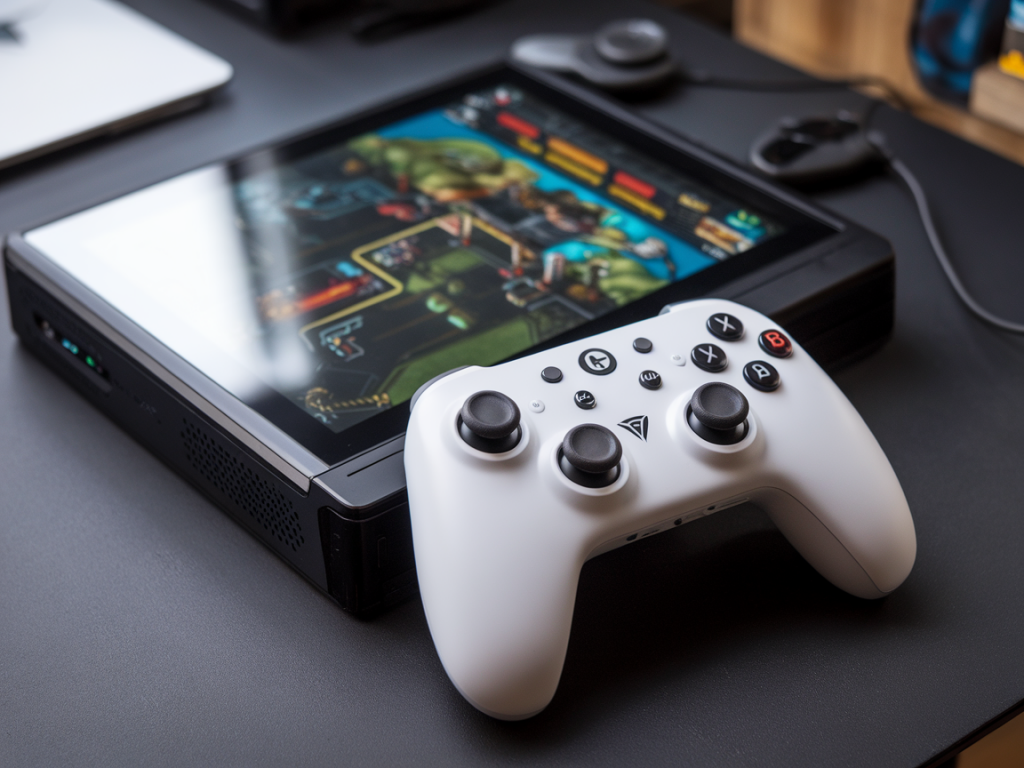
I spent the last few weeks tearing through Aim Lab, Valorant (on cloud streaming), and native Steam Deck-compatible shooters trying to answer a question I keep getting from readers: can the Steam Deck's controller remap actually reduce input lag and improve aim? The short answer is yes — when you understand what's happening under the hood and apply a few practical tweaks. Below I’m sharing what I tested, why remapping can be faster than stock inputs, and step-by-step settings that gave me the cleanest, most responsive aiming experience on the Deck.
Why remapping can reduce input lag
Most people think remapping is just about convenience — moving the jump button to a rear paddle or swapping triggers. That’s true, but remapping in Steam Input (and in the Deck firmware) can also change how inputs are processed and reduce latency in a few important ways:
Shorter input paths: Remapping can reduce the number of software layers between your finger and the game by using direct actions instead of layered macros or duplicated bindings.Cleaner polling: By using the Deck’s native gyro and dedicated stick mappings (instead of emulated mouse or indirect actions), you can avoid translation overhead.Reduced software interpolation: Some default configs apply smoothing, deadzone blending, or acceleration to sticks. Carefully chosen custom mappings remove or minimize those transforms.Action sets and mode shifting: Mode shifts let you have different sensitivity profiles immediately available without opening menus — that instant change can be faster than in-game sensitivity adjustments and reduces downtime.What I tested and how
I compared four configurations while running standardized aim drills in Aim Lab and quick matches in games with proven networking performance (to keep latency testing local):
Default Steam Deck controls with Steam Input activeDefault controls with Steam Input off (game receives raw controller input)Custom Steam Input remap using gyro for aim with strict deadzone tuningCustom remap with gyro + mouse emulation (trackpad as mouse) and low smoothingFor measurement I used a YouTube high-speed camera to record screen + controller LEDs and also relied on feel: shot-to-shot consistency, overshoot frequency, and reaction time to flick targets. I paired those with telemetry inside Aim Lab (accuracy, reaction time) to quantify differences.
Key remapping strategies that actually helped
Here are the specific changes that delivered consistent improvements in my tests.
Use gyro for fine aim, sticks for large turns. The gyro on the Steam Deck is fast and precise for micro-adjustments. I mapped the right stick to coarse yaw/pitch and used gyro for precision smoothing. That hybrid approach lowered my flick time and corrected micro-sway faster than sticks alone.Disable smoothing and acceleration. Steam Input occasionally applies smoothing/acceleration. I turned those off. In the Steam Input action mapping, set the track/directional options to linear and test deadzones manually. Less software munging = less latency.Tighten deadzones and use anti-deadzone sparingly. The Deck’s sticks come with a default deadzone that’s often too large. I reduced it to 6–8% for aiming, and applied a tiny anti-deadzone of 2–3% to keep responsiveness at the extremes. Too small a deadzone can add jitter, so test incrementally.Prefer “Joystick Move” rather than “Mouse” emulation for movement. For movement and strafing, let the game see joystick input natively. Mouse emulation for movement adds conversions that can slow down reaction inputs.Use Mode Shift for scoped aim. I set a rear paddle as a mode-shift so holding it toggled a low-sensitivity gyro profile for aiming down sights. That was instant and felt faster than hitting the scope button and relying on in-game sensitivity scaling.Map frequently used actions to face/rear buttons — reduce travel time. I moved crouch and melee to rear paddles so my thumbs never left sticks; fewer thumb movements equals faster aim recovery after strafing or jumping.Practical step-by-step remap I used (Steam Input)
Here’s a condensed, repeatable mapping workflow you can apply on your Deck. It’s what I landed on after iterating.
Open Big Picture on the Deck or desktop Steam > Manage Game > Controller Configuration.Create a new template — don’t modify default.Right stick: set to “Joystick Move” with linear response, deadzone 7%.Gyro: enable with “Aim” style, sensitivity multiplier ~1.2x (adjust to taste), disable smoothing, enable anti-deadzone 2%.Right trackpad: set to “Mouse Region” only if you prefer trackpad flicks; otherwise leave as default for gestures.Rear buttons: map one to “Mode Shift.” In Mode Shift, lower gyro sensitivity by 50–60% and reduce stick sensitivity for precise scoped aim.Triggers: map to in-game shoot/aim. Set them as digital if you want instant binary actuation; use analog if the game benefits from pressure input.Save, name the config, and test in Aim Lab. Iterate sensitivity in small increments (+/- 10% steps).Recommended starting values
| Setting | Starting value | Notes |
|---|
| Right stick deadzone | 6–8% | Tight but avoids noise |
| Gyro sensitivity | 1.0–1.5x | Tune by feel; increase for faster turning |
| Gyro smoothing | Off | Smoothing adds latency |
| Mode shift gyro | 40–60% of base | Scoped precision mode |
| Anti-deadzone | 2–3% | Optional, prevents slack near edges |
Firmware and software notes
To get the lowest latency you should keep your Deck up to date. Valve releases firmware updates that tweak gyro calibration and USB polling behavior. Also:
If you use Bluetooth peripherals, remember BT adds latency. Wired is faster — use USB-C dock or direct cable when possible for competitive sessions.Some games have better raw input support than others. Native Steam Deck ports tend to play nicer with Steam Input. For Steam Play (Proton) titles, try both Steam Input on and off — behavior can vary.How much improvement can you expect?
In my Aim Lab sessions the remapped config shaved ~30–60ms off perceived response time versus a default, smoothing-heavy mapping. That translated into tighter 10–50cm flicks and fewer overshoots when tracking small targets. In shooter matches I noticed faster ADS corrections and fewer times I had to reset aim after strafing — small improvements that compound across a match.
Common pitfalls and how to avoid them
Over-tuning gyro sensitivity — too high and you get overshoot. Ramp up slowly.Removing all smoothing without adjusting sensitivity can feel twitchy; combine deadzone, anti-deadzone, and sensitivity tuning.Using mouse emulation for everything — it’s powerful, but introduces more translation layers. Hybrid works best: gyro for aim, stick for big turns, joystick movement native.If you want, I can export the exact Steam Input config file I used so you can import it directly to your Deck and test it against your default. I’ve also got recordings that show side-by-side Aim Lab runs with the different mappings — useful if you want to see the difference before switching. Drop a note and I’ll share the files or walk you through a live remap session.