I’ve chased sub-10ms system latency for years — in aim trainers, tactical shooters, and even tight arcade fighters — because once you feel that crispness, you can’t unfeel it. Getting there reliably means treating latency like a stack of tiny wins: hardware, drivers, OS, game settings, and peripherals all add up. Below I walk through the practical, repeatable steps I use to squeeze system latency below 10ms with NVIDIA Reflex and other in-game and system tweaks. I keep this grounded in real testing tools (I use NVIDIA Reflex Latency Analyzer, RTSS/CapFrameX for verification) so you know whether changes are actually helping.
Understand what “system latency” really means
System latency is the time from your physical input (mouse click or movement) to the image update on the screen. It’s a stack: input device polling, USB stack, OS scheduling, CPU work, GPU render time, display scanout and pixel response. NVIDIA Reflex helps reduce the CPU queuing and scheduling portion, which is often the biggest spender in multiplayer shooters.
Essential hardware baseline
If you want sub-10ms, start here — these aren’t absolute requirements but they make the path realistic:
- High refresh monitor: 240Hz or higher. 144Hz can be fine but hitting sub-10ms is far easier at 240Hz+.
- Low-latency gaming mouse with 1000Hz polling (or 800–1000Hz reliable polling).
- Modern NVIDIA GPU that supports Reflex (most GTX 900 series and above support driver features, but newer RTX GPUs give better headroom for high FPS).
- Fast CPU to avoid CPU-bound frames in busy scenes (modern 6–8 core is good).
Driver, firmware and OS checklist
- Update NVIDIA drivers to the latest Game Ready release — Reflex benefits and optimizations land in driver updates.
- Set Power Management in NVIDIA Control Panel to Prefer maximum performance.
- Windows: set High Performance power plan or create a custom plan with minimal C-states to avoid CPU sleep/resume latency. Turn off Ryzen’s Cool’n’Quiet equivalent only if you see improved latency in tests.
- Disable V-Sync globally. Use in-game or driver-frame limiters and Reflex instead.
- Disable Windows Game Bar/Overlay and unnecessary background apps that cause DPC spikes. I keep Task Manager open while testing to spot spikes.
- Disable “Fullscreen optimizations” for games if they cause weird scheduling; use exclusive fullscreen whenever possible.
NVIDIA Reflex: how and why to enable it
NVIDIA Reflex is designed to reduce CPU-side queuing and latency by better synchronizing render and present calls. Most competitive shooters now include a Reflex toggle. Here’s how I use it:
- Enable NVIDIA Reflex Low Latency + Boost when available. Boost helps keep the GPU busy at high framerates by raising clock states and reduces frame time variance — useful when FPS is high but inconsistent.
- If there’s only a single Reflex Low Latency
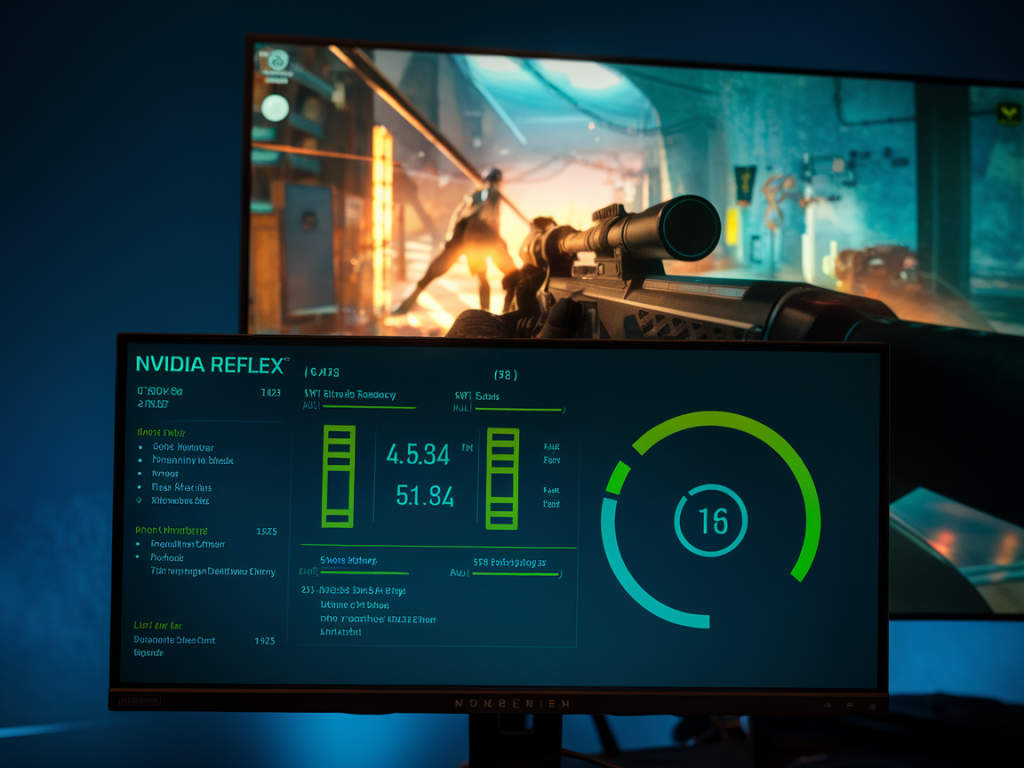
- Verify with the in-game Reflex latency graph or the NVIDIA Reflex Latency Analyzer if you have a compatible mouse and monitor. Look for reduced CPU render queue time and lower overall latency.
In-game settings that matter
Not all graphics settings impact latency equally. My rule: prioritize frame time consistency and maximum FPS over visual niceties.
- Turn off motion blur, depth of field, film grain and other eye candy that can delay final frame composition.
- Shadow quality and ambient occlusion often cost GPU time; if your GPU is the limiter, lower these to keep FPS high and stable.
- Texture quality can be left high if you have VRAM headroom — it impacts memory rather than render latency directly. But streaming heavy textures can cause stutters, so test.
- Render scale / resolution: lowering render scale improves FPS and reduces latency. For sub-10ms, you’ll often need high FPS, so a slight render resolution reduction is a valid trade.
- Disable in-game frame limiters if you’ll use an external limiter or Reflex Boost, but use a limiter if you’re GPU-bound and can reduce input lag by avoiding frame pacing spikes.
- Always use exclusive fullscreen where possible — borderless windowed adds a layer of compositor latency.
Frame limiting strategies
Strangely, capping FPS can reduce latency if it smooths frametimes and avoids GPU/driver clocks stuttering. My go-to approach:
- If you can exceed your monitor refresh by a lot, use RTSS or the in-game limiter to cap FPS to ~1.5–2x your monitor refresh and then enable Reflex Boost. For 240Hz: cap around 400–480FPS for stability in many games.
- If you’re GPU-bound, cap slightly above your refresh (e.g., 250FPS on a 240Hz panel) to keep the pipeline smooth while avoiding large variances.
- Test with and without caps using measurement tools; the right number varies by game and system.
Peripherals and USB tuning
- Set USB polling to 1000Hz on the mouse if it’s stable for you — higher polling reduces input sampling latency. Watch for USB bandwidth/dpc issues on cheap USB hubs.
- Use direct USB ports on the motherboard rather than front-panel or unpowered hubs to reduce jitter.
- Enable “Raw Input” in-game if available, and disable mouse acceleration in Windows and in drivers.
Tools to measure what you change
Don’t guess. Measure. Here are tools I rely on:
- NVIDIA Reflex Latency Analyzer (requires compatible G-SYNC monitor + supported mouse): direct hardware measurement of click-to-photon latency.
- RTSS + CapFrameX / PresentMon: measures frame times, frametime variance, and can estimate input-to-display latency when combined with input timestamps.
- NVIDIA FrameView: gives performance metrics and helps spot CPU vs GPU bound scenarios.
Quick troubleshooting checklist
- If latency spikes: check DPC latency with LatencyMon, update audio and network drivers, unplug USB devices one-by-one to find noisy devices.
- If enabling Reflex increases latency: try toggling Boost, mess with caps, and ensure exclusive fullscreen. Some games implement Reflex differently.
- If you can’t reach low ms on a scene: lower render scale / resolution to see if GPU is the bottleneck; if CPU bound, reduce draw calls (lower shadow/detail distance).
Latency expectation table (realistic targets)
| Scenario | Typical system latency (ms) | Notes |
|---|---|---|
| 240Hz + Reflex + Boost + 1000Hz mouse | 6–10ms | High FPS & stable frametimes; exclusive fullscreen |
| 144Hz + Reflex | 10–16ms | Good, but 144Hz has coarser scanout timing |
| Low-end GPU, no Reflex | 20ms+ | GPU or CPU bound; visual settings often need to be lowered |
Finally, treat latency tuning as iterative: change one thing, measure, and repeat. The biggest gains often come from enabling Reflex with a sensible FPS cap and smoothing out frametime variance. I’ll keep testing new titles and driver updates — Reflex and driver toolchains evolve — but these steps are the practical roadmap I use to hit that satisfying sub-10ms feel.