I’ve spent more nights than I care to admit juggling framerate, GPU temps, and a messy overlay that looked great on paper but tanked my game. If you’re on a tight PC budget and you want a pro-level streaming overlay that doesn’t cost you frames, I’ve got a workflow that’s practical, tested, and focused on efficiency over flash. Below I’ll walk you through how I build overlays that look polished, perform reliably, and keep gameplay smooth—without buying a second PC or sacrificing visuals.
Start with a clear plan: what your overlay actually needs
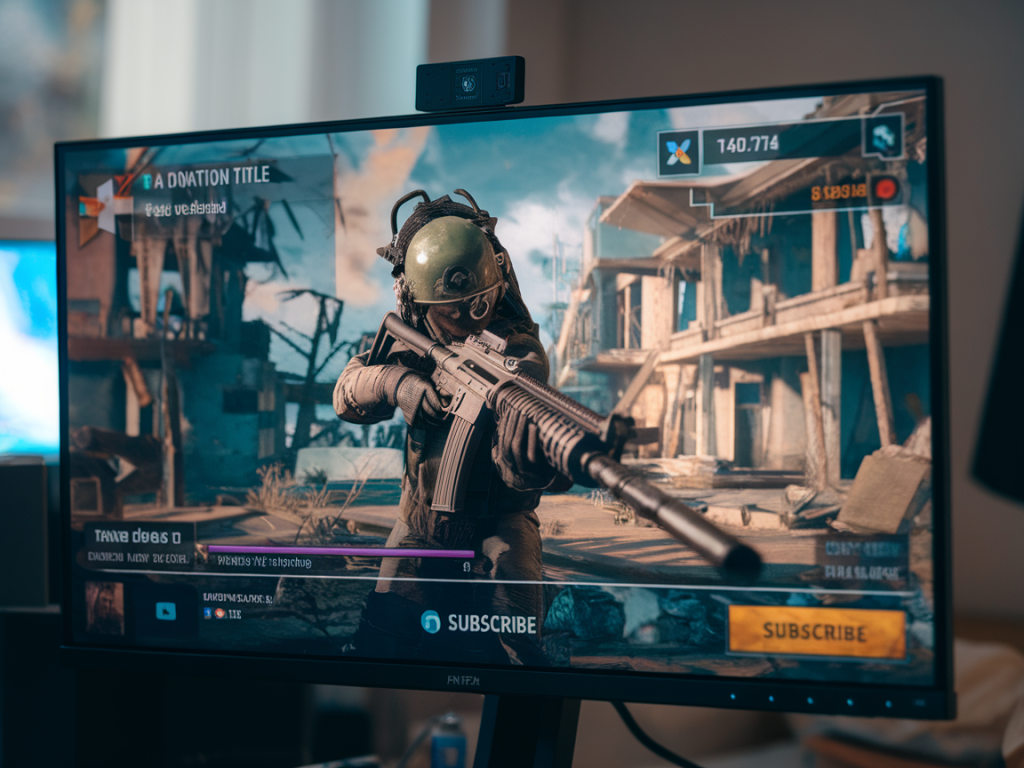
Before diving into assets and software, ask yourself what your overlay must show. Less is more. For a pro look with low overhead I usually include:
Everything else—chat widget, complicated animations, multiple browser sources—can be optional or put on a separate “engagement” scene that you only load when you’re idle.
Choose lightweight assets
Asset choice is the first place you can save CPU/GPU cycles.
I often design everything in Affinity Designer or GIMP and export optimized PNGs at the exact pixel sizes I need. This saves OBS from scaling things on the fly.
Software choices and why OBS with NVENC is usually best
For tight-budget rigs, use the most efficient stack. I stream with OBS Studio and rely on my GPU encoder (NVENC on NVIDIA or AMD’s VCE/AVC equivalent) rather than x264 CPU encoding. That single decision prevents most FPS drops.
Tip: In OBS, enable “Use stream encoder” NVENC and set it to the quality preset that balances bitrate and latency for your connection. NVENC offloads encoding to your GPU without costing much CPU, which is invaluable on a budget PC.
OBS settings that keep FPS stable
Here are the OBS settings I use on a mid-to-low-end gaming PC to preserve game performance while looking crisp on stream.
| Setting | Value | Why |
|---|---|---|
| Base (Canvas) Resolution | Game native (e.g., 1920x1080) | Render at full canvas to keep source alignment accurate |
| Output (Scaled) Resolution | 1280x720 or 1600x900 | Downscaling cuts encoder load and bitrate while remaining watchable |
| Downscale filter | Lanczos or Bicubic (if GPU allows) | Good balance of quality and performance |
| FPS | 30 or 60 (60 if your PC and connection handle it) | 30 reduces encoder stress; 60 looks smoother for fast games |
| Encoder | NVENC (new) | Offloads work from CPU to GPU |
| Rate control | CQP or CBRC (depending on OBS version) | Consistent quality without spiking CPU usage |
| Preset | Performance or Quality (depending on GPU) | Choose the fastest setting that still looks clean |
Capture method: game capture > window capture > display capture
Always use Game Capture for fullscreen games when possible. It’s the least resource-intensive and most compatible with overlays. Window Capture can cause more overhead, and Display Capture is the heaviest—only use it if you absolutely must capture everything on screen.
Optimize browser sources and widgets
Browser sources can be the silent FPS killers. Here’s how I make them cheap:
Scene organization and performance mode
Keep OBS scenes simple. I maintain two types of scenes:
In OBS, right-click your preview and enable Performance Mode while streaming. It turns off the preview to reduce GPU draw, which can save notable resources on weak GPUs.
Hardware tweaks without spending much
You don’t need a second PC to look pro. These small tweaks make big differences:
Audio and webcam efficiency
Audio doesn’t use much GPU, but mixing poorly can. Use a single audio device in OBS and route sources with virtual cables if needed. For webcams, use 720p at 30fps instead of 1080p/60—it looks fine on stream and saves processing.
Testing checklist before going live
Building a pro-level overlay on a budget is more about smart choices than flashy features. Keep assets optimized, rely on hardware encoding, consolidate browser sources, and prioritize a single clean gameplay scene. Do that, and you’ll be streaming with a sharp-looking overlay that doesn’t cost you the most important thing: consistent, competitive FPS.