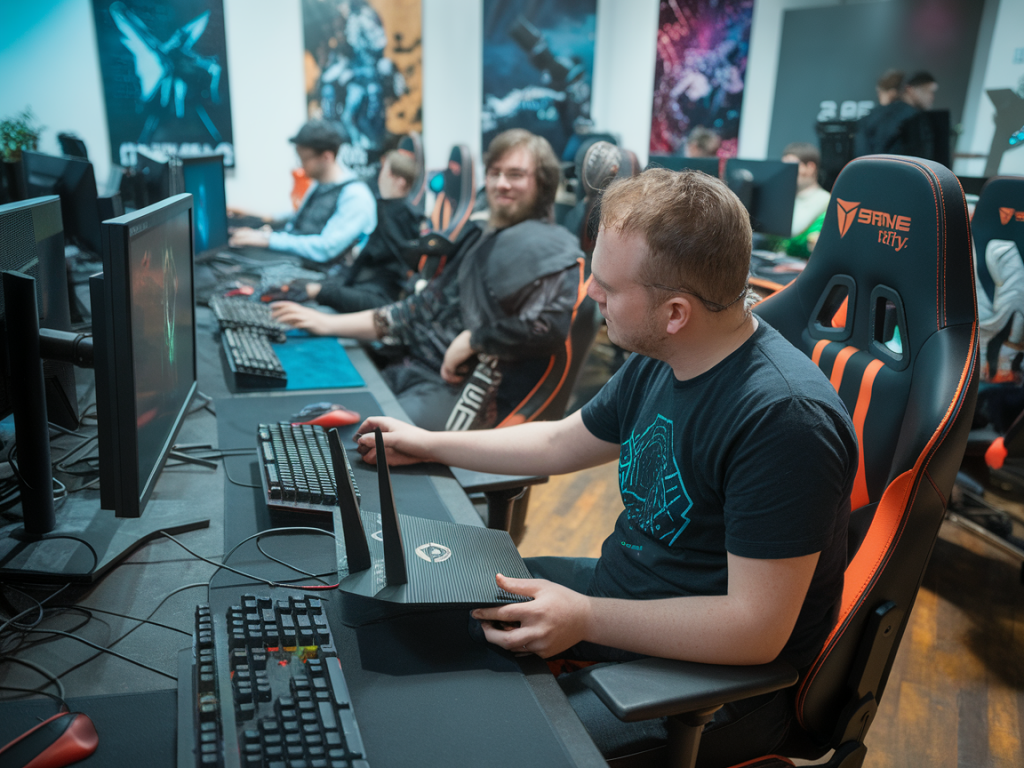
If you’ve ever been one of the players sitting on a headset griping about a spike right as you peeked a corner, you know how unforgiving latency can be. I set out to reliably get sub-30ms latency for LAN parties and ranked matches by treating the network like a competitive piece of gear — measure, optimize, repeat. Below I’ll walk you through the practical steps I use when I’m deploying a router + mesh pair for high-performance gaming. This is hands-on advice, not theory: these are the settings and habits that consistently shave latency and reduce jitter in live sessions.
Why sub-30ms matters (and what it really means)
Latency is more than a number: it’s how responsive the game feels. Under 30ms round-trip, inputs and visual feedback align smoothly for most FPS and fast-paced titles. That threshold isn’t arbitrary — many pro setups aim for 10–30ms. Below 30ms, human perception of lag drops dramatically, and hit registration, peek timing, and micro-decisions feel much cleaner.
Keep in mind: the value that matters is round-trip latency to the destination (game server or peer). For LAN parties, you’re often talking LAN ping (to the host or local server) which should be far lower than internet ping. My goal here is to remove local network as the bottleneck so your connection to the game server is the only variable left.
Essential gear checklist
Primary router with robust QoS and advanced settings (examples: Asus RT-AX88U, Netgear Nighthawk RAX50, or Ubiquiti Dream Router).Mesh units that support wired backhaul and AC/AX performance (e.g., Asus AiMesh nodes, TP-Link Deco with Ethernet backhaul, or Ubiquiti UniFi APs for prosumer setups).Gigabit unmanaged or managed switch (for LAN parties I prefer a cheap 24-port gigabit switch like a Netgear GS324 or a managed switch for VLANs and QoS if needed).Good Cat6 (or Cat6a) Ethernet cables for all wired connections.Optional: a small performance router/switch combo to act as a gaming-only VLAN or DMZ for ranked players.| Role | Recommended spec |
|---|
| Primary router | Dual-core or better CPU, hardware NAT, QoS, full IPv4/IPv6 support |
| Mesh node | Supports wired backhaul, 5GHz tri-band or dedicated backhaul band preferred |
| Switch | Gigabit, unmanaged for simplicity, managed if VLANs or traffic shaping needed |
Network topology I use
For minimal latency I favor wired whenever possible. My standard topology for a LAN party or competitive setting:
ISP modem → primary router (DHCP, gateway, QoS) → gigabit switch → wired players/mesh node (wired backhaul) → additional mesh nodes (if needed) → wireless players.If you must use wireless for some clients, make the mesh nodes act as access points with a wired backhaul to the switch. Avoid wireless daisy-chaining for high-performance sessions — that’s where latency and jitter creep in.
Key router & mesh settings to guarantee sub-30ms
These are the settings I change immediately when preparing a gaming setup. I’ll explain why each matters and what to set.
Use wired backhaul — If your mesh supports it, connect mesh nodes to the switch via Ethernet. Wireless backhaul introduces extra airtime and increases latency (especially when multiple hops are used).Enable QoS but keep it simple — Prioritize gaming traffic using Smart QoS or by setting DSCP prioritization. If your router supports Game QoS or a gaming priority profile, enable it. For manual QoS, create rules that prioritize UDP/TCP ports used by the games you’ll play and give high priority to console/PC MAC addresses.Set static IPs or DHCP reservations — For hosts and tournament machines, assign static IPs so port forwarding, QoS, and monitoring are reliable.Disable double NAT — If you have an ISP gateway plus a router behind it, put the gateway in bridge mode or use the router in access point mode to avoid extra latency and port issues.Adjust MTU carefully — Default MTU is usually fine (1500), but if you use PPPoE check and set MTU to 1492 or test for optimal packet size to avoid fragmentation.Enable IGMP snooping and multicast optimizations — Useful for LAN games that broadcast traffic. This reduces unnecessary flooding to all ports.Turn off bandwidth-hungry background features — Disable automatic backups, large downloads, cloud sync and firmware auto-updates on gaming machines while matches are live.Limit wireless channel interference — Use a Wi-Fi analyzer (apps like WiFi Analyzer or tools built into Asus routers) to pick the least congested 5GHz channel. If your mesh is tri-band, use a dedicated 5GHz backhaul band and separate SSIDs for each band if you want fine control.Use wired switches for participants — A simple, low-latency gigabit switch between the router and players beats having everyone on Wi-Fi.Disable SIP ALG and gratuitous NAT features — These can introduce packet processing delays and break peer-to-peer game traffic.Keep UPnP on selectively — UPnP helps with NAT traversal, but for tournaments I prefer manual port forwarding for the host to avoid unpredictable behavior.Testing and validation
After configuring, validate latency using different tools and under load.
Ping tests: run continuous pings to the game host or to a local host to measure baseline LAN RTT (e.g., ping 192.168.1.100 -t on Windows or ping -i 0.2 on Linux for higher frequency).Jitter tests: use tools like iPerf3 to generate traffic and measure jitter and throughput between clients and server. Example: iPerf server on host, clients run iPerf with UDP (-u) and set target bandwidth to saturate the link slightly.Real-game tests: always do a 10–15 minute warm-up match and record ping/jitter from in-game overlays (or use PingPlotter for a longer trace).Monitor during load: use the router’s traffic graphs or a managed switch with SNMP to see if any client hits link saturation.Troubleshooting common issues
If you see latency spikes only on Wi-Fi: check for interference (microwaves, neighboring networks), move channels, reduce SSID overlap, and force problematic clients to 5GHz if they’re on crowded 2.4GHz.If one client shows high latency: test with a direct cable to the switch. If latency drops, the problem is the client’s Wi-Fi adapter or cable.If game servers show inconsistent latency across players: ensure everyone uses the same DNS (Cloudflare 1.1.1.1 or Google 8.8.8.8 can be slightly faster than ISP DNS in some cases), and check for packet loss using mtr or PathPing.If QoS seems ineffective: make sure your WAN upload value is accurate in the QoS settings. Many routers need a precise upstream bandwidth figure to shape traffic correctly.LAN party-specific recommendations
Bring a dedicated gaming switch and enough Cat6 cables — don’t rely on the venue Wi-Fi.Label cables and ports for quick troubleshooting.Designate a “match host” machine with static IP and reserve its traffic priority on the router.Keep a small backup router or hotspot for emergency NAT or DHCP serving if the main router fails.Latency is a series of small decisions: cables instead of air where possible, prioritization where needed, and measurement every step of the way. Make those decisions deliberate, test them under load, and you’ll get closer to that sub-30ms target consistently. If you want, tell me your current gear and I’ll suggest exact settings for that model — I’ve got tweak lists for Asus, Ubiquiti, Netgear and TP-Link on hand.