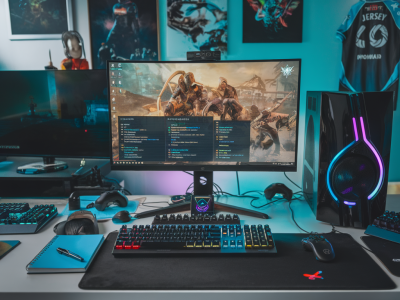
When I set out to tune my mouse DPI and sensitivity for pixel-perfect aim in CS2, I treated it like any other optimization: measure, iterate, and test in the real world. This isn’t magic — it’s deliberate practice paired with the right settings. Below I’ll walk you through the exact things I tune, why they matter, and step-by-step tests and drills I use to turn settings into consistent, repeatable aim.
Why DPI and sensitivity matter (and what actually changes your aim)
People often treat DPI and in-game sensitivity like a preference to be copied from pros. The truth is they interact with several layers: mouse hardware (DPI, sensor quality, polling rate), operating system settings (Windows sensitivity), game settings (raw input, in-game sensitivity, m_yaw), and your own biomechanics (wrist vs arm movement, muscle memory). If any layer is off, aim will feel inconsistent.
I always start by fixing the obvious: make sure the mouse sensor and firmware are behaving correctly, disable Windows acceleration, and use raw input in CS2 so the game reads the mouse directly. From there, target an eDPI that matches the kind of aim you want (flick vs tracking) and then tune small increments while testing with drills.
Key terms you should know
- DPI (dots per inch): hardware setting on the mouse. Higher DPI = cursor moves more for the same physical movement.
- In-game sensitivity: multiplier applied by CS2 to mouse input.
- eDPI = DPI × in-game sensitivity. This gives a single number to compare sens across setups.
- Raw Input: bypasses Windows mouse settings — essential for consistency.
- m_yaw: how many degrees the game turns per unit of mouse input. Default is 0.022 in CS2 (same as CS:GO historically).
- Polling rate: how often the mouse reports position (usually 500Hz or 1000Hz). 1000Hz is preferred for lowest latency.
My baseline checklist before tuning
- Disable Windows pointer precision (mouse acceleration) in Control Panel.
- Set Windows sensitivity to the default (6/11) so raw input is predictable.
- Enable raw input in CS2 (mouse_rawinput 1).
- Set mouse polling rate to 1000Hz in the mouse software (Logitech G Hub, Razer Synapse, SteelSeries Engine, etc.).
- Pick a DPI the sensor handles well: 400 or 800 are the gold standards for most gaming sensors (e.g., Logitech HERO, Razer Focus+, PixArt 3389).
Choosing a DPI
I personally prefer 400 or 800 DPI depending on the game and my keyboard setup. For CS2 I use 800 DPI
Picking your target eDPI
Pick an eDPI that fits your style:
- Low eDPI (100–400): best for arm-heavy play and large sweeping flicks. Great for players using larger mousepads.
- Medium eDPI (400–1000): balanced — good for a mix of tracking and flicks.
- High eDPI (1000+): favors wrist play and small micro-adjustments, but less common in CS2 pro circles.
Here are some example configurations I often recommend and test with:
| Mouse DPI | In-game Sens | eDPI (DPI×Sens) | Playstyle |
|---|---|---|---|
| 400 | 1.0 | 400 | Slow, arm-based flicks |
| 400 | 2.5 | 1000 | Faster wrist/arm mix |
| 800 | 0.5 | 400 | Less movement than 400DPI/1.0 but similar feel |
| 800 | 1.0 | 800 | Balanced, common for mixed styles |
How I test and tune: a step-by-step routine
One-off adjustments don’t stick. I use a repeatable routine:
- Set DPI and in-game sensitivity to hit a target eDPI (pick a baseline like 400 or 800 eDPI).
- Warm up for 10 minutes in Aim Lab or Kovaak’s with tracking and flick tasks at the same resolution and mousepad size I play CS2 with.
- Jump into CS2’s workshop aim maps (aim_botz, training_aim_csgo) for 10–20 minutes: test long-range flicks, close-range tracking, and pre-aim consistency.
- Adjust in 0.02–0.05 sensitivity increments in CS2. Small changes are what matter — big jumps break muscle memory.
- Record which setting felt most consistent across different drills, not just fastest in one drill.
Practical tuning tips I use
- When switching DPI, keep eDPI consistent to preserve muscle memory — e.g., 400 DPI × 1.0 = 400 eDPI and 800 DPI × 0.5 = 400 eDPI.
- If flicks feel overshot/undershot, change sensitivity in tiny steps (0.02–0.05). If micro-corrections are jittery, lower sensitivity slightly.
- Use the same mousepad and desk setup during tuning — surface friction and arm positioning change everything.
- Check your grip: switching from fingertip to palm can alter how movement translates to the screen.
- Consider ADS and scope sensitivity (zoom_sensitivity_ratio_mouse) — I often set it so that scoped movement feels proportional and predictable for AWP peeks.
Example tuning session (what I actually did recently)
Last week I wanted better mid-range flicks with my Logitech G Pro X Superlight. My baseline was 800 DPI and 1.0 sens (eDPI 800). Flicks felt slightly wide. I dropped in-game sens to 0.9 (eDPI 720) and ran a 30-minute mixed drill: 10 min tracking, 10 min small target flicks, 10 min long-range flicks. After 30 minutes, my consistency improved on 2–3 target hits out of 5 for long-range flicks. I kept 0.9 for a week of play and it stuck comfortably.
Troubleshooting common issues
- If aim feels inconsistent across sessions: ensure raw input is enabled and Windows acceleration is off.
- If mouse stutters: check USB polling rate, update firmware, try a different USB port, and confirm no power-saving features are throttling the USB controller.
- If sensitivity feels too high/low when switching monitors or resolutions: remember eDPI scales with resolution; re-test on the actual resolution you play on.
- If zoom/ADS feels off with scoped weapons (AWP): adjust zoom_sensitivity_ratio_mouse to match unscoped turn speed for predictable flicks while scoped.
Final notes on the practice-to-settings loop
Settings are a tool to amplify skill; they won’t replace poor fundamentals. After every meaningful tweak I pair it with at least 2–3 days of focused practice so muscle memory can adapt. Use Aim Lab or Kovaak’s to measure improvements numerically, and use CS2 maps to test in-match scenarios.
If you want, tell me your current DPI, in-game sensitivity, mouse model, and playstyle (wrist vs arm) and I’ll suggest a practical starting eDPI and a 2-week tuning plan tailored to you.